The Team Screen
How To Get Here
From the top menu, go to: Settings > Team
The Team card is shown to the account owner and to team members who have Administrator. Other team members do not see it.
What Is This Screen For?
Team is where you give other people their own login to your SellerLegend account: virtual assistants, staff, business partners or your accountant. For each person you decide:
- Where they can look: which marketplaces and groups.
- What they can do there: which pages, actions and dashboard panels.
The screen has two tabs:
- Members -- everyone who can sign in to your account, with a summary of what each person can reach.
- Roles -- reusable bundles of marketplaces and permissions, such as "Accountant" or "Virtual Assistant". See Team Roles.
Team used to be Guest Access and User Roles
The Guest Access and User Roles screens are now one Team screen. Guests are called team members. Everyone you added before is still here with the same access, and your old bookmarks open the new pages.
The Members Tab
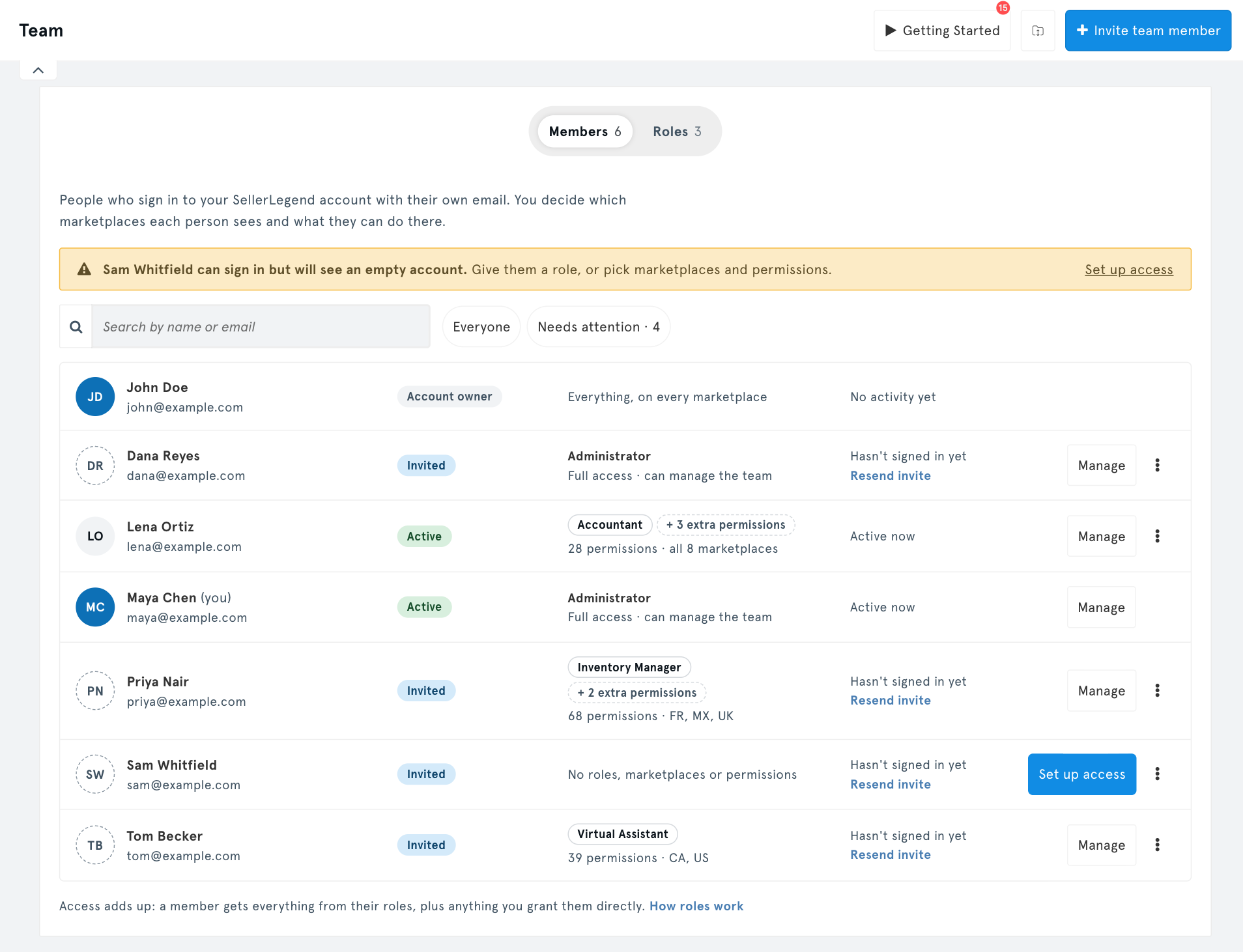
The account owner is listed first, followed by every team member. Each row shows:
| Part of the row | What it tells you |
|---|---|
| Name and email | Who the person is, and the email they sign in with. Your own row is marked (you). |
| Status | Account owner, Active (has signed in and chosen a password) or Invited (has not signed in yet). |
| Access | The roles they hold, how many extra permissions you gave them directly, the total number of permissions, and the marketplaces they can see. An Administrator shows Full access · can manage the team. |
| Activity | When they were last active, or Hasn't signed in yet. |
| Manage | Opens the person's page, where you change everything about their access. It reads Set up access for someone who cannot see anything yet. |
| ⋮ menu | Resend invite, Revoke all access and Remove from team. |
Finding People
- Search by name or email in the box above the list.
- Needs attention shows only the people who have not signed in yet or who have no access set up. Everyone shows the full list again.
- A yellow banner appears when someone can sign in but would see an empty account, with a link to set up their access.
Inviting a Team Member
- Click Invite team member at the top right of the screen.
- Enter the person's Full name and Work email.
- Choose what they should be able to do (see below).
- Click Send invite.
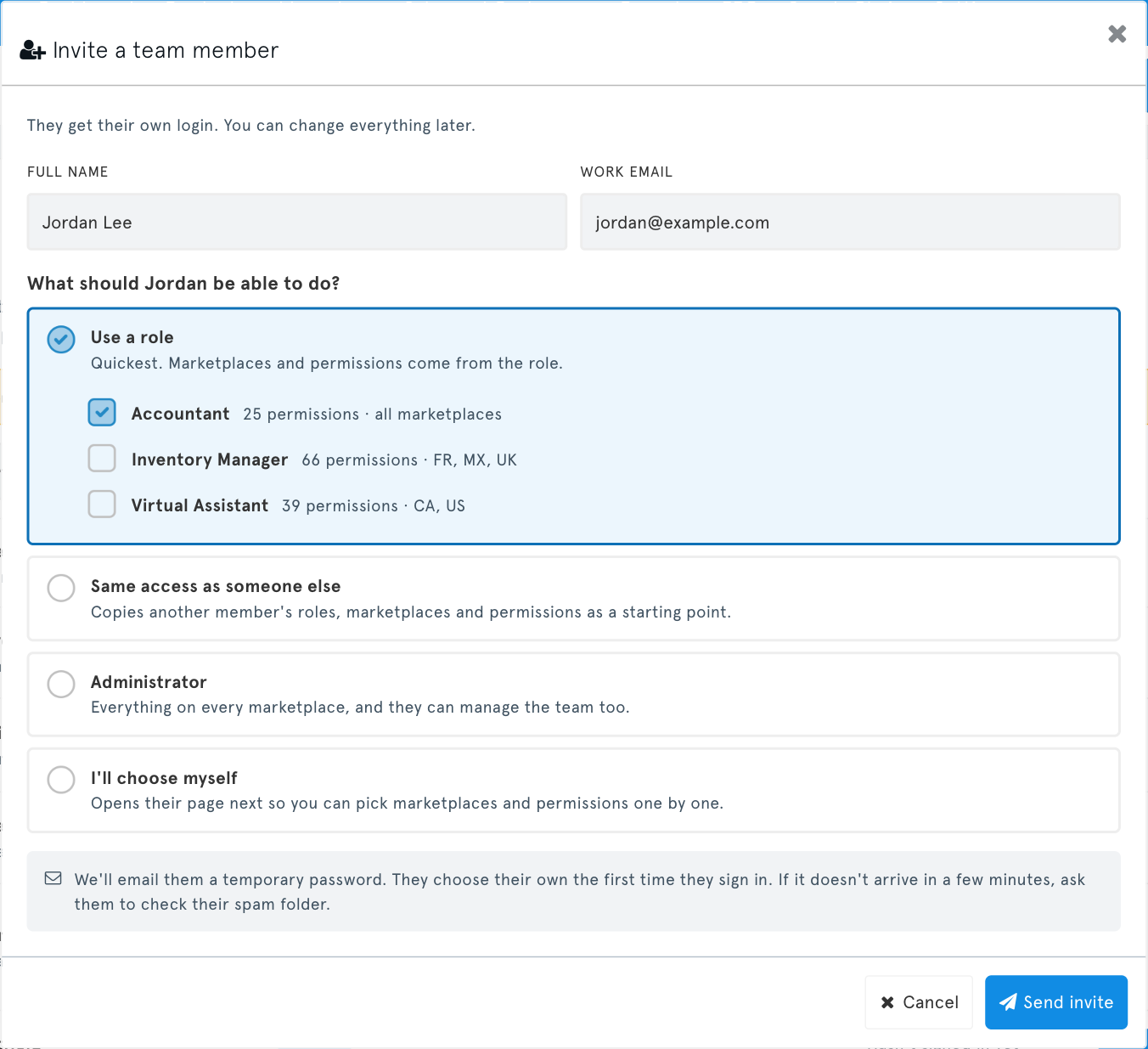
You set the person's access at the moment you invite them. There are four ways to do it:
| Option | When to use it |
|---|---|
| Use a role | The quickest way. Tick one or more roles; their marketplaces and permissions come from the roles. |
| Same access as someone else | Copies another member's roles, marketplaces and permissions as a starting point. |
| Administrator | They can use everything on every marketplace, and they can manage the team too. |
| I'll choose myself | Sends the invite and opens the person's page next, so you can pick marketplaces and permissions one by one. |
You can change all of this later on the person's page.
What the Invited Person Receives
- An email with a temporary password.
- The first time they sign in, they are asked to choose their own password.
- After that they see only the marketplaces and pages you allowed.
If the email does not arrive within a few minutes, ask them to check their spam folder.
Sending the Invite Again
Click Resend invite on the person's row. They are emailed a new temporary password, and the one sent before stops working.
- Resend invite is available only until the person has signed in and chosen their own password.
- You can send one invite email to the same person every five minutes.
Changing What Someone Can Do
Click Manage on a row to open that person's page. One page holds their profile, roles, marketplaces and groups, and permissions, and everything is saved together.
See Managing a Team Member's Access.
Taking Access Away
There are two ways, and they do different things:
| Action | What happens |
|---|---|
| Revoke all access | Keeps the login but takes away every role, marketplace, group and permission. The person can still sign in, but sees nothing. Use it to pause someone. |
| Remove from team | Deletes the person's login. They can no longer sign in. You can invite the same email again later. |
Both ask you to confirm first. You cannot revoke or remove yourself.
Who Can Manage the Team?
- The account owner.
- Any team member with Administrator.
Give Administrator with care
An Administrator can use every page on every marketplace, including ones added later. They can also invite people, change what other team members can do, remove team members and manage roles.
Giving Access From the Connections Screen
You can also decide who sees a marketplace from the marketplace itself. On Settings > Connections, open an account's details panel and scroll to Team access. Switch people on or off for that marketplace and click Save.
The same switches are in the Edit Group window of the marketplace switcher, for marketplace groups.
Read more in Managing a Team Member's Access.
Bulk Import and Export
The Bulk Import/Export button at the top of the Team screen downloads your whole team as a spreadsheet: members, their marketplaces and groups, their permissions and their roles. You can change the spreadsheet and upload it again to update many people at once.
What a Team Member Sees
- The top menu and the Settings page list only the pages they are allowed to open.
- If they open a page they have no access to, they see an Access denied page that names the account owner and says what to ask for.
- Data from marketplaces that are not ticked for them does not appear anywhere.
Hints & Tips
- Access adds up. A member gets everything from their roles, plus anything you grant them directly. Nothing takes access away except removing it.
- Start with roles for jobs that more than one person does, and use direct permissions only for extras.
- A person with no marketplaces sees an empty account, even if they have permissions. Give them at least one marketplace or a role that includes one.
- Team members cannot cancel the subscription.
- To let a team member connect AI apps or use the API, give them the API Access permission.
See Also
- Managing a Team Member's Access -- The member page, section by section
- Team Roles -- Reusable bundles of marketplaces and permissions
- Team Permissions -- How permissions work, and the full list