Notification Rules -- Choose What You Hear About, and Where
October 5, 2026
Type: Feature Enhancement
Overview
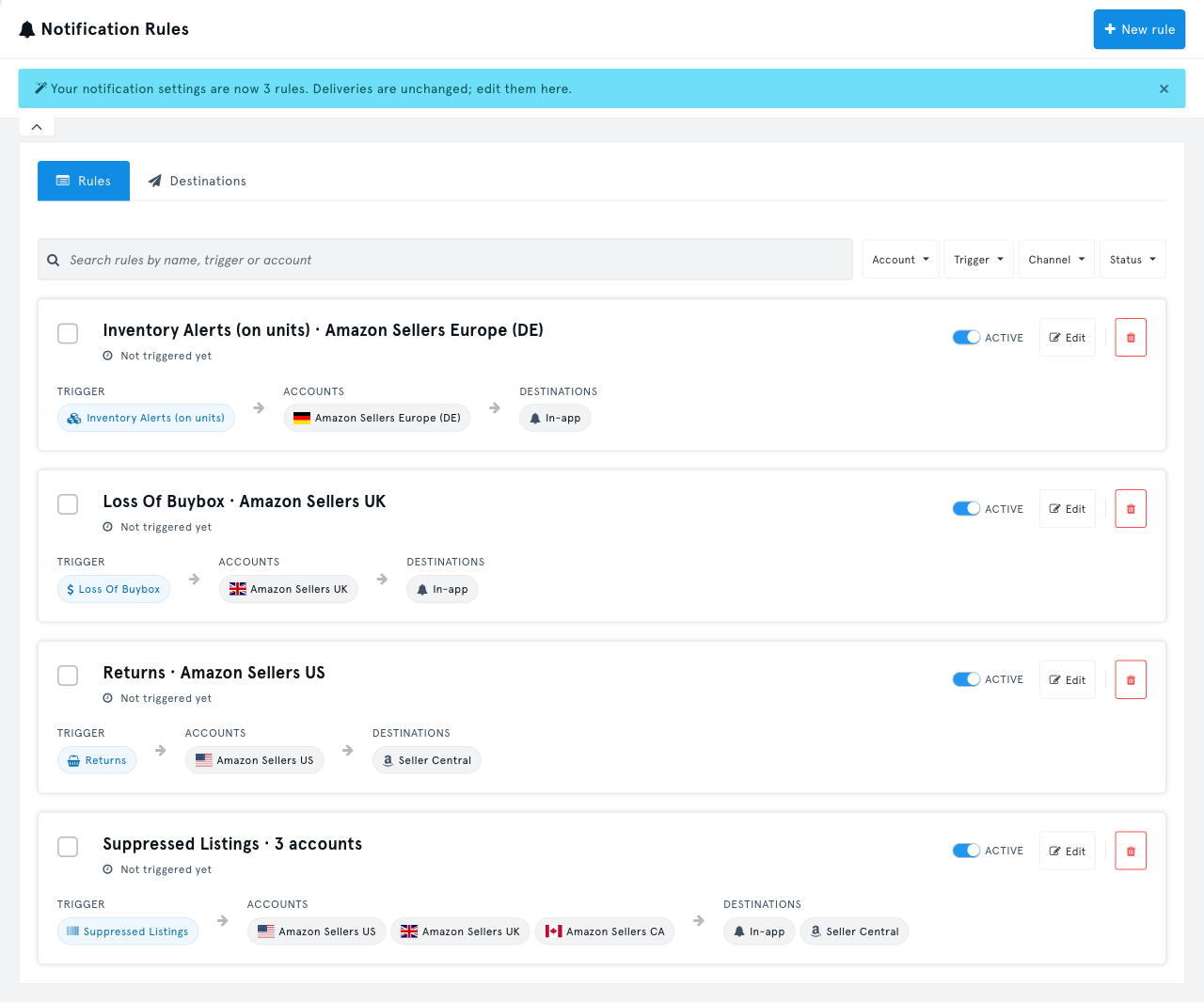
Notification settings are now built from rules. A rule says what should alert you (for example a lost Buy Box), for which accounts, and where the alert goes (in SellerLegend, by email, to Seller Central, to Zapier or to a webhook). One rule can cover as many accounts as you like, so you set an alert up once instead of ticking the same boxes for every marketplace. Your existing notification settings have been turned into rules for you, and they keep delivering exactly as before.
What's New
Rules Replace the Settings Grid
- The old grid, with one row per notification type for every account, is gone. The Notifications screen now shows a list of your rules.
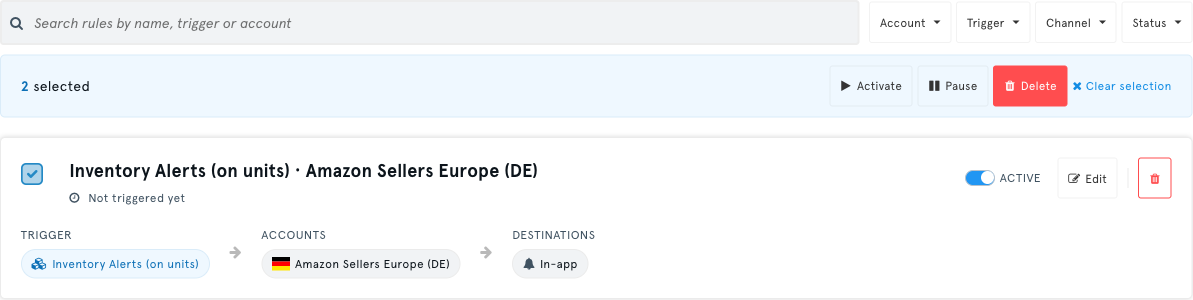
- Each rule card shows the trigger, the accounts it watches, the channels it sends to, whether it is Active or Paused, and when it last fired.
- Pause a rule to stop its alerts without losing its setup, and resume it later with one click.
- Edit or Delete a rule from its card at any time.
A Guided Four-Step Setup
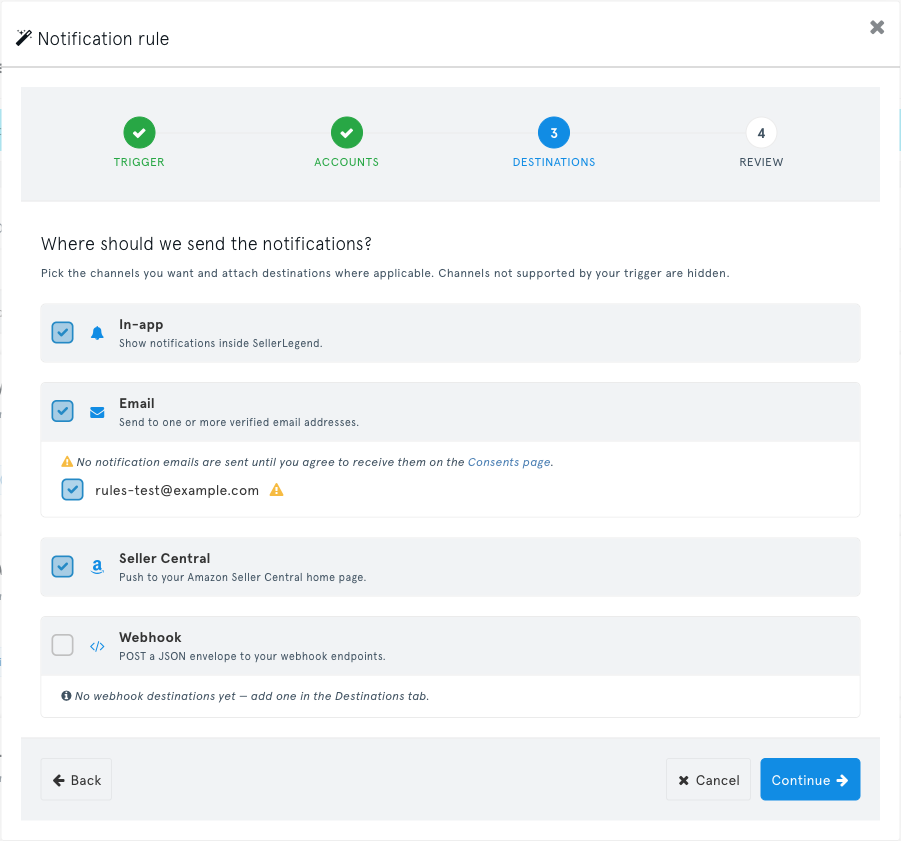
Click New rule and a short wizard walks you through it:
- Trigger -- pick the event you want to hear about, such as Loss Of Buybox, Suppressed Listings, Inventory Alerts or Returns. Search the list by name.
- Accounts -- pick one or more of your connected marketplace accounts. Account-wide events, such as Import Report, Export Report and Amazon Connections Failure, don't belong to one marketplace, so this step is skipped for them.
- Destinations -- choose where the alert goes. Channels the event can't use are hidden, so you only see options that work.
- Review -- check the summary, give the rule a name, and save. You can jump back to any step to change it.
Each account can be covered by only one rule per event, so you never get the same alert twice. If an account is already covered by another rule for that event, the wizard names that rule so you can edit it instead.
A Destinations Tab for Everything You Deliver To
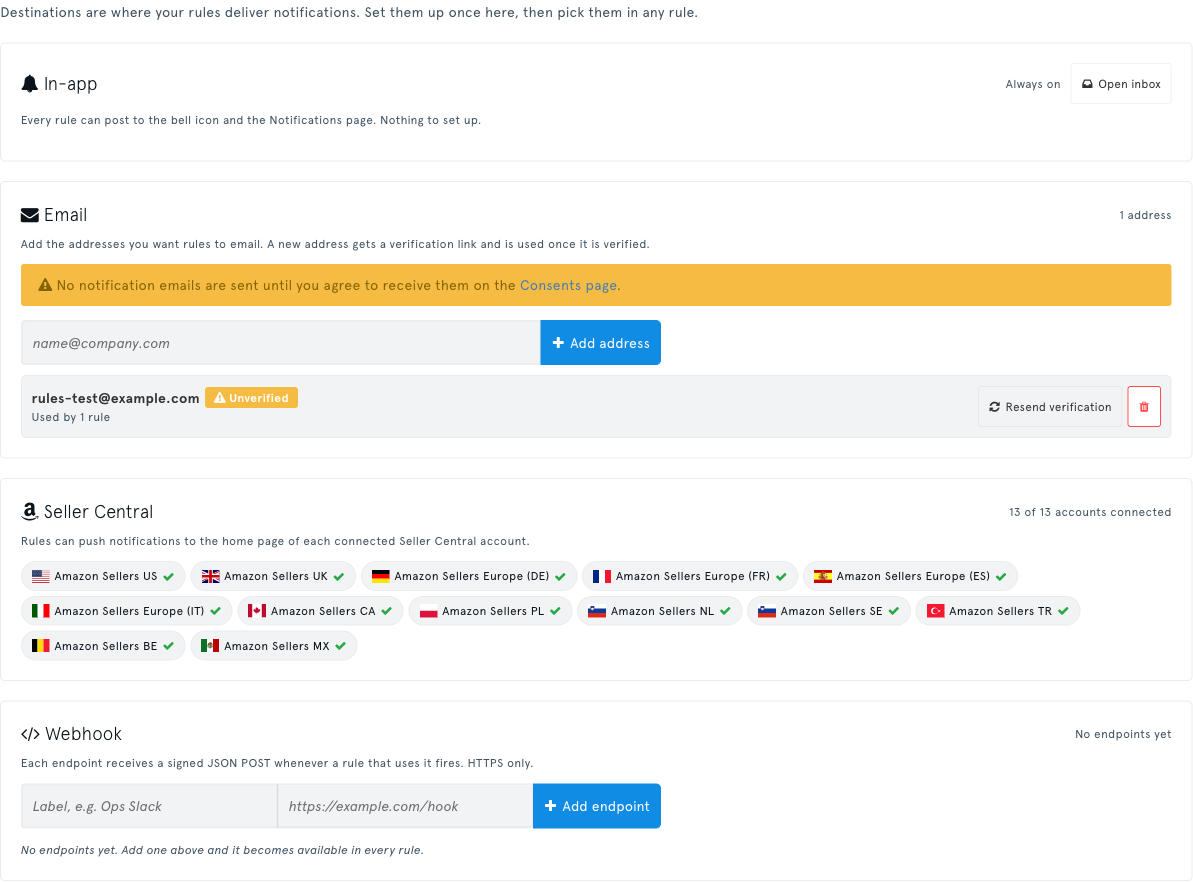
The new Destinations tab keeps everything a rule can send to in one place. Set a destination up once, then pick it in any rule. Each one shows how many rules use it.
| Destination | What it does |
|---|---|
| In-app | Shows the alert under the bell icon and on the Notifications page. Always available, nothing to set up. |
| Sends the alert to one or more addresses. A new address gets a verification link and receives alerts once it is verified. Emails are only sent once you have agreed to receive them on the Consents page; the screen reminds you if you haven't. | |
| Seller Central | Posts the alert to the home page of each connected Seller Central account. Available for Listing Changes, Suppressed Listings, Returns and Feedback Notification. Accounts that need reconnecting are flagged. |
| Zapier | Sends the alert to your connected Zap, if Zapier is enabled for your account. |
| Webhook | Sends the alert to your own system. Add an endpoint, copy its signing secret, and rotate the secret or re-enable an auto-disabled endpoint here. See Webhook Notifications. |
Removing an email address or webhook endpoint doesn't delete the rules that use it. They keep running and stop sending to that destination.
Find and Manage Rules Quickly
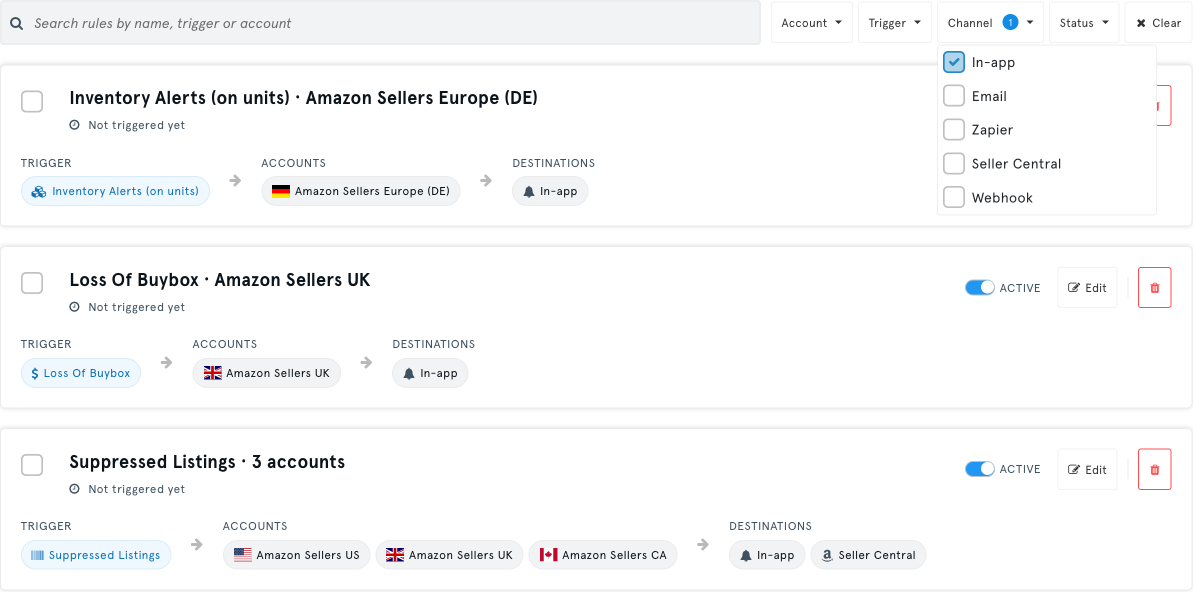
- Search your rules by name, trigger or account.
- Filter by Account, Trigger, Channel or Status. Click Clear to reset everything.
- Bulk actions -- tick the checkbox on several rules, then Activate, Pause or Delete them all at once.
How Your Existing Settings Changed
You don't need to redo anything.
- Your settings are now rules. Every notification you had switched on in the old grid has been turned into a rule. Deliveries are unchanged: the same alerts go to the same channels, email addresses and webhook endpoints as before.
- Matching settings were combined. If you had the same event set up the same way on several accounts, those accounts now share one rule. For example, Suppressed Listings set up the same way on three accounts becomes one rule called Suppressed Listings · 3 accounts. A setting on one account is named after that account, for example Returns · Amazon Sellers US. Rename any rule from its Edit button.
- Seller Central alerts you never set up now appear as rules. SellerLegend has always posted Listing Changes, Suppressed Listings, Returns and Feedback Notification alerts to your Seller Central home page by default, even if you never set them up. Those defaults now show up as rules, so you can see them and pause or delete them if you don't want them. The same happens when a newly connected account gets one of these alerts for the first time.
- Settings with everything switched off were not turned into rules. They weren't sending anything, so there was nothing to keep.
- A one-time message at the top of the Notifications screen tells you how many rules were created from your settings. Close it once you've had a look.
- Duplicate alerts stop. In a few cases the same setting was saved twice and sent some alerts twice. Those duplicates were merged, so you now get each alert once.
How to Use
- Go to Account Settings → Notifications. Bookmarks to the old settings page open the new screen.
- On the Rules tab, review the rules created from your existing settings.
- To add an alert, click New rule and follow the four steps.
- To change a rule, click Edit on its card. To stop it for now, switch it to Paused. To remove it, click Delete.
- Open the Destinations tab to add email addresses or webhook endpoints before you pick them in a rule.
Benefits
- Less repetitive setup -- one rule covers many accounts, so adding an alert for ten marketplaces takes one step instead of ten.
- Everything in view -- every alert that reaches you, including Seller Central defaults, is a rule you can see and control.
- Pause instead of delete -- switch an alert off for a busy week and back on later, without setting it up again.
- Easier to manage at scale -- search, filters and bulk actions keep a long list of rules under control.
Impact
- No action is required. Your alerts keep arriving exactly as before.
- The old per-account settings grid has been retired. All notification settings are now managed on the Notifications screen as rules.
- Deleting a rule stops its alerts for good. They don't come back unless you create a rule again.
- When you edit a rule, accounts that are currently disconnected or inactive, and a Zapier channel that isn't currently available to you, stay on the rule. The wizard tells you when that's the case.