Advanced Tables for Everyone -- Faster Paging and Actions Beside Your Table
November 16, 2026
Type: Feature Enhancement
Overview
The Advanced table format is now the standard for every table in SellerLegend. It loads faster than the Classic format, and it now has everything Classic offered: page-by-page browsing, a rows-per-page choice and cell copying. Your page's own buttons have also moved into the table toolbar, right next to the data they act on.
What's New
Page-by-Page Browsing
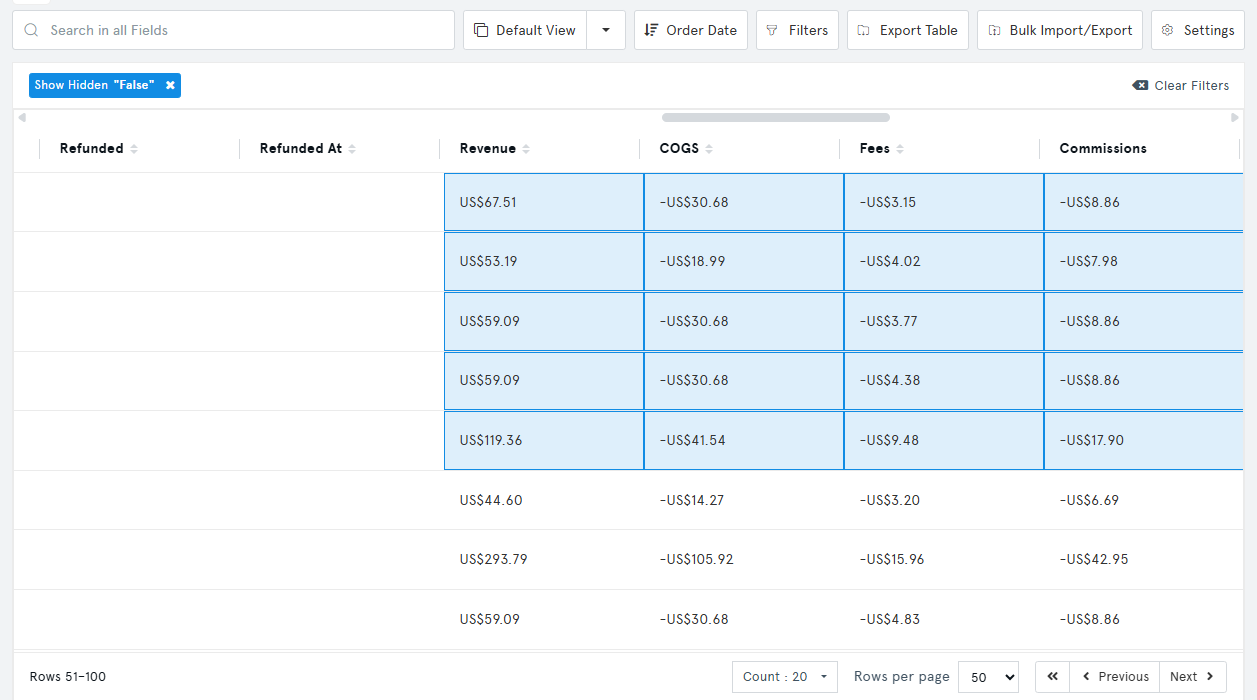
- First / Previous / Next buttons in the table footer replace the old Load More button. Each page replaces the rows on screen, so long tables stay easy to work with.
- Rows per page: choose 10, 25, 50, 100 or 250 rows. Your choice is saved with the view.
- Faster loading: tables no longer count every matching row before showing results, which was the slowest part of loading a large table. When you reach the last page, the footer shows the total (for example, "Rows 11--20 of 20").
- The footer stays in view at the bottom of the screen while you scroll.
- Your page is remembered: reload the page and you return to the same page of results, as long as your search, filters, sort, accounts and date range are unchanged.

Page Buttons Move Into the Table Toolbar
- On pages that open with a table, the page's own buttons (such as Settings, Bulk Import/Export or dashboard Customization) now sit at the right end of the table toolbar, beside the table.
- They stay visible even when you collapse the page title bar.
- Pages that open with tiles or a chart keep their buttons in the title bar.
- Getting Started stays in the title bar.
Smarter Button Labels
- Every toolbar button now has an icon and a label.
- When space runs out on smaller screens, labels shrink to icons for the whole toolbar at once, so the toolbar always looks consistent. Hover an icon to see its name.
Date Ranges and Product Switchers in the Title
- Pages that kept their date range among the buttons now show it in the page title, like every other page: Foreign Exchange Rates, Inventory History, Order Tracker and the Customer Dashboard among them. Click the date range in the title to change it.
- On Sales Rank History and Listing History, the product switcher now sits in the page title, as it already does on the product dashboard.
Work With Cells Like a Spreadsheet
- Select cells: click a cell, Shift-click to select a block, or Ctrl-click (Cmd-click on a Mac) to add single cells. Selected cells are highlighted.
- Copy to a spreadsheet: press Ctrl+C (Cmd+C on a Mac) to copy the selected cells. They paste into Excel or Google Sheets as rows and columns.
- Quick summary: the table footer shows how many cells are selected. Open it to see the total, minimum, maximum and average of the selected numbers.
- Filter by a value: select a SKU, ASIN, FNSKU, product group or brand cell to filter the table by it, just as in the Classic format.
Fit Columns to Their Content
- Click a column divider and choose Fit to size the column to its content.
More Accurate Totals on Inventory
- The column totals on the Inventory tables now add up every matching row, not just the rows on the current page. Totals load separately, so they never slow down the rows.
Tables Fixed for the Advanced Format
- Incurred Expenses (Cash Flow) is now a regular table, so resizing, freezing and the pinned header work there too.
- On Operating Expenses, the freeze pin no longer shifts the columns out of line.
- Column headers no longer overlap the first row on pages with a select-all checkbox or long column titles.
- The Cash Flow and Operating Expenses Configuration tabs show their buttons in a toolbar with labels and line up with the other Cash Flow tabs.
How to Use
- Open any table, for example Products or Orders.
- Use First, Previous and Next in the footer to move between pages, and pick how many rows to show under Rows per page.
- Find your page's buttons at the right end of the table toolbar.
- Click cells to select them, then press Ctrl+C (Cmd+C on a Mac) to copy them into a spreadsheet.
Benefits
- Faster tables: no more waiting for a full row count on every load.
- Everything in one place: search, filters, export and page actions in one toolbar beside the table.
- Spreadsheet-friendly: copy any block of cells straight into Excel or Google Sheets.
- Pick up where you left off: reloading a page keeps you on the same page of results.
Impact
- All tables switch to the Advanced format, and new views are created in Advanced. The table format switch is no longer shown.
- Your saved views keep their columns, filters and rows-per-page choice.
- The total number of rows and a Last page button are not shown by default, to keep tables fast. If you need them, or need to keep using the Classic format, contact our support team and they can turn it on for your account.
- API access and exports are not affected.