A New Top Bar -- Account Switcher, Menus and Tools in One Place
November 16, 2026
Type: Improvement
Overview
The bar at the top of every page has a new look. Your marketplace or group switcher now sits in the bar itself, the menus open as compact lists right under their name, and the bar adapts to the size of your screen. Every page and feature is where it was; only the way you get to them has changed.

What's New
The Account Switcher Is in the Top Bar
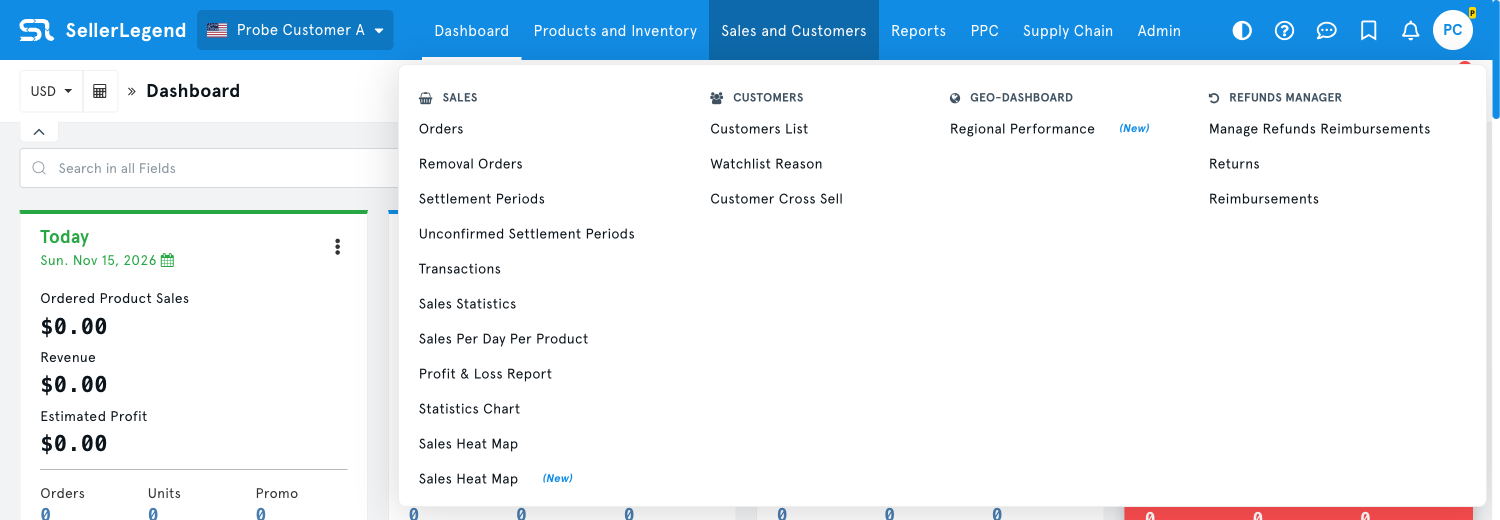
- The button that selects your marketplace or account group has moved from beside the page title into the top bar, next to the logo.
- It shows the flag and name of what you are viewing, on every page that lets you change it.
- Clicking it opens the same Select Marketplace/Group panel as before, with search, your groups and Create New Account Group.
- The currency selector and the exchange rates button stay beside the page title.
Compact Menus
- Each menu now opens as a compact list under its name, instead of a panel across the whole screen.
- Menus with several areas, such as Sales and Customers, show them side by side under small headings.
- The menu of the page you are on is underlined, so you can see where you are.
- Admin lists your account settings pages in two columns, each with a short description.
- You can still bookmark a page from the menu: point at it and click the bookmark icon.
Tools on the Right
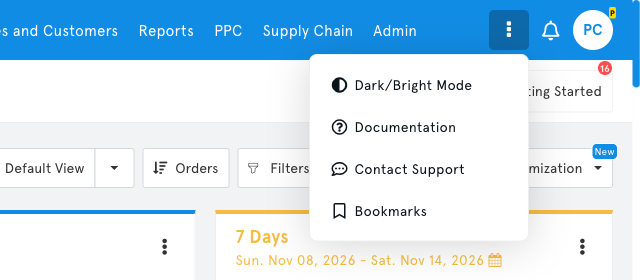
- Dark/bright mode, documentation, support chat, bookmarks, notifications and your profile are larger and easier to click.
- On smaller screens the less used tools move under a More tools button (three dots). Notifications and your profile always stay in the bar.
Side Panels Open Below the Bar
- Panels such as Filters, Notifications, Bookmarks and your Profile now open below the top bar, so the bar stays within reach while a panel is open.
- The close button of a panel is a plain × in its top corner.
- Opening a menu closes the panel that is open.
Tablets and Phones
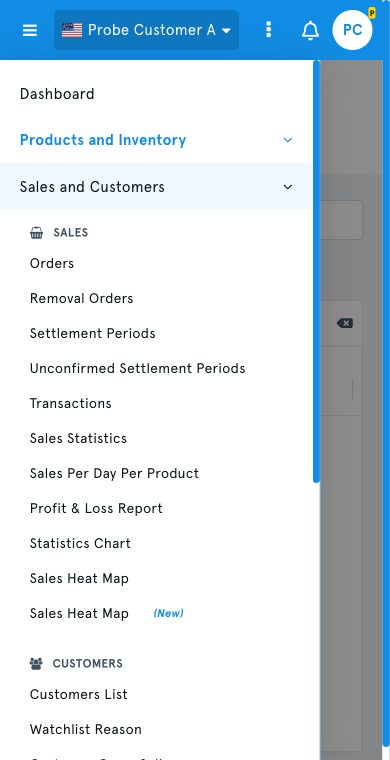
- On narrower screens the main menu opens from the menu button (three lines) at the left of the bar, as a list you can scroll.
- Tap a menu to open its pages in place.
- On phones the logo makes way for the name on the account switcher. Dashboard is the first entry of the menu.
How to Use
- Switch marketplace or group: click the button with the flag next to the logo, then pick a marketplace or group.
- Open a page: click a menu in the top bar and choose the page from the list.
- Find a tool that is not in the bar: click More tools (three dots) on the right.
- On a phone or tablet: tap the menu button (three lines) on the left to open the main menu.
Benefits
- Always know what you are looking at: the active marketplace or group is shown in the same place on every page.
- Less covered screen: menus and panels take only the room they need.
- Works on any screen: the bar keeps everything reachable from a wide monitor down to a phone.
- Nothing to relearn: menus, pages and panels keep their names and contents.
Impact
- No action is required. Your bookmarks, saved views and settings are unchanged.
- The account switcher is no longer beside the page title: look for it in the top bar, next to the logo.
- On screens narrower than a typical laptop, look under More tools for dark/bright mode, documentation, support chat and bookmarks.