Refreshed Data Tables -- Inline Search, Drag-to-Resize and Click-to-Sort
November 16, 2026
Type: Feature Enhancement
Overview
Every data table in SellerLegend has a cleaner, more consistent look. The search box now sits right above the table, the toolbar buttons are labelled, and the table itself is a tidy card with comfortable row spacing. Along the way, resizing, freezing and sorting columns became quicker, and a few long-standing table glitches were fixed.
What's New
A Tidier Toolbar
- Search right where you need it: the search field is now always visible on the left of the toolbar. Type and press Enter to search, or click the x to clear. No more opening a separate search window.
- Labelled buttons: the view switcher, sort, Filters and Export Table buttons sit next to the search field with a clear icon and label.
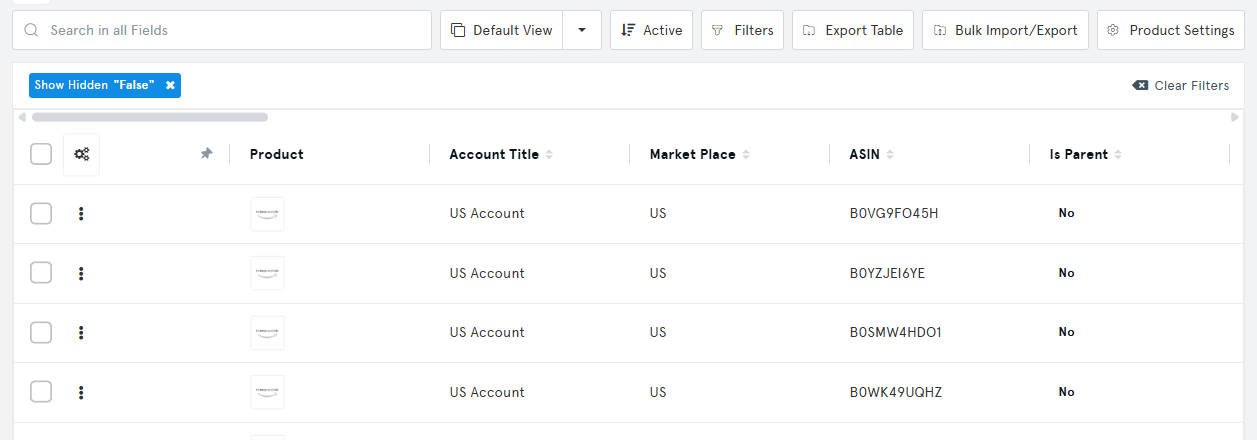
- Clear Filters moves next to your filters: when filters are applied, the Clear Filters button appears at the right end of the bar that lists them, so it's right beside what it clears. The Shift + Backspace shortcut still works.
- Keyboard shortcut: press / to jump straight into the search field.
A Cleaner Table
- The table is shown as a single card with a light header, evenly spaced rows and consistent padding, in both light and dark themes.
- Short tables no longer leave a large empty area below the last row.
- Status labels, such as Deleted on admin screens, are shown as small badges instead of large buttons.
Easier Column Control (Advanced Format)
- Drag to resize: drag the divider between two column headers to resize the column as you go. A single click on the divider still opens the box where you can type an exact width.
- Pin to freeze: freezing now uses a small pin icon at the right of the column header, always visible. Click the grey pin on the next column to freeze it; the highlighted pin marks the last frozen column, and clicking it unfreezes that column.
- Click a header to sort: click the header of a sortable column to sort by it, and click again to reverse the order. Arrows show the current sort direction.
- Header stays in view: when you scroll down a long table, the column headers stay pinned at the top of the screen so you always know which column is which.
Fixes
- Column widths you set are now kept after sorting, searching, filtering or loading more rows, and are no longer overwritten when the table saves your view.
- Widening a frozen column now widens the frozen area too, instead of squeezing the other frozen columns.
- If loading rows fails, the table no longer gets stuck on "Loading...". A Retry button appears so you can try again.
- Hovering a row with frozen columns now highlights the whole row.
- "No Data Found" now appears only when a table has no rows at all.
How to Use
- Open any table, for example Products, Orders or Inventory.
- Type in the search field at the top left of the table and press Enter, or press / to jump into it.
- In the Advanced format, drag the divider between column headers to resize, click the pin in a header to freeze or unfreeze columns, and click a header to sort.
- After applying filters, use Clear Filters at the right of the filter bar to remove them all.
Benefits
- Less clicking: search, sort and resize directly on the table.
- More readable: a consistent layout on every table page makes data easier to scan.
- More reliable: your column widths stick, and a failed load no longer leaves the table stuck.
Impact
- The new look applies to every table automatically. No action is required.
- Your saved views, filters, column widths and frozen columns are unchanged.
- The freeze button and column resizing described in Frozen Table Columns and Table Column Resizing now use the pin icon and the drag-to-resize divider described above.