Export Table and Bulk Import/Export -- Clearer Buttons and a Simpler Window
November 16, 2026
Type: Improvement
Overview
Exporting and bulk editing now work the same way on every page. Export Table saves the table as you see it, and Bulk Import/Export lets you download a file, edit it and upload it again. Bulk Import/Export opens in a simpler window that shows your latest file and its status, so you no longer need to leave the page to find it.
What's New
One Name for Each Job
- Export Table downloads the table as shown on screen, with your filters, columns and sort.
- Bulk Import/Export is for editing data in bulk through a file, such as cost of goods, product settings, suppliers or warehouses.
- Each button has its own icon, and the same two buttons are used on every page, including Cost of Goods, Products, Other Operating Expenses and Cash Flow.
- Other Operating Expenses: the separate "Import OOE" and "Export OOE" buttons are replaced by Export Table and Bulk Import/Export.
- Cash Flow: "Export Cashflow" is now Export Table.

A Simpler Bulk Import/Export Window
- Bulk Import/Export now opens in a window instead of the side settings panel.
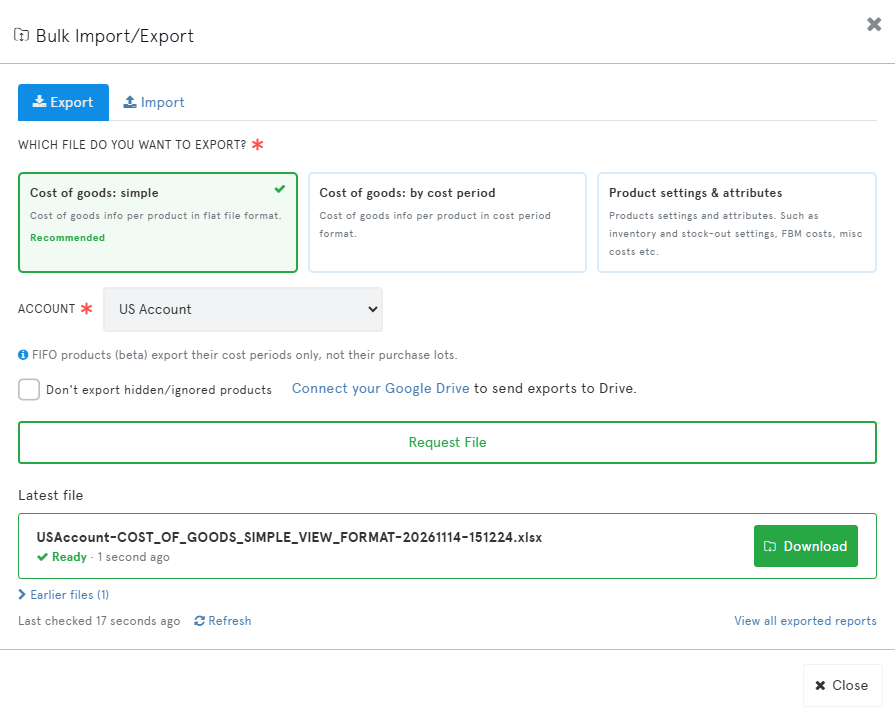
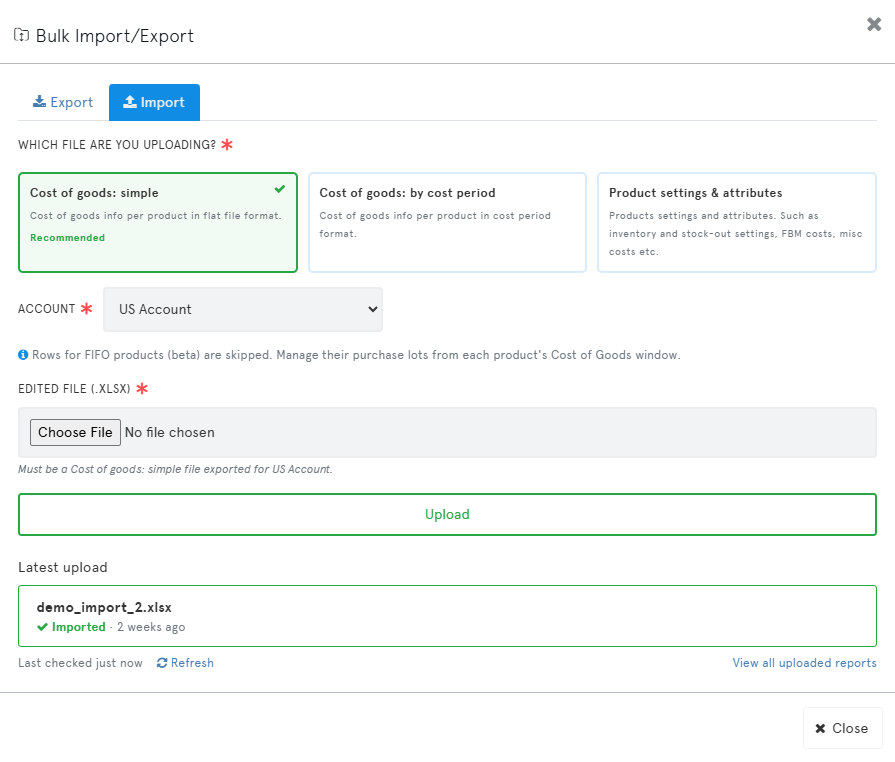
- The window has an Export tab and an Import tab.
- Each file type is shown as a card with a friendly name and a short description, such as "Cost of goods: simple" or "Product settings & attributes".
- When you choose a file type or account on one tab, the other tab follows, so you upload to the same type you exported.
- The upload field tells you which file it expects.
See Your Latest File and Its Status
- Request File queues your file, and the window shows it straight away with its status: Queued, Preparing, Ready, Failed or Cancelled.
- Once the file is ready, click Download right in the window. The status updates on its own while the window is open, and you can close the window at any time while the file is prepared.
- On the Import tab, your latest upload is shown with its status: Queued, Importing, Imported, Imported with warnings or Failed. You can download any upload again as you sent it, for example to fix a file that failed.
- Earlier files are folded away under Earlier files, and links take you to the full Exported Reports and Imported Reports pages.
Google Drive
- If you request a file with Also send to my Google Drive, the window shows an Open in Drive button once it's uploaded.
- If the file couldn't be sent to Google Drive, the window says so and explains why, with the next step to take.
- You can connect Google Drive from the window and return to the page to find the option ready to tick.
Fixes
- On Cost of Goods and Products, choosing Product settings as the upload type now correctly hides Propagate COGS to other Marketplaces, since product settings are not propagated.
- After uploading cost of goods in the simple (flat file) format, you now see the same note as for other cost of goods uploads: it can take 60 to 90 minutes to show everywhere.
- The Request File and Upload buttons are disabled while your request is sent, so a double click no longer queues the same file twice.
- On Cost of Goods, the Bulk Import/Export button now sits in the table toolbar, as it does on Products.
How to Use
- Open a page with bulk editing, such as Cost of Goods or Products.
- Click Bulk Import/Export in the table toolbar.
- On the Export tab, pick the file type (and account, if asked), then click Request File.
- When the status shows Ready, click Download.
- Edit the file, then switch to the Import tab, choose the file and click Upload. The status of your upload appears below.
- To save the table as you see it, use Export Table instead.
Benefits
- No more guessing: one clear name and icon for each kind of export.
- Stay on the page: request, download and upload files without visiting the Exported Reports page.
- Know what's happening: see whether your file is still being prepared, ready, or failed, and why.
Impact
- The buttons are renamed and the Bulk Import/Export window replaces the side panel automatically. No action is required.
- The files themselves, their columns and their formats are unchanged, so your existing spreadsheets and workflows keep working.
- The Exported Reports and Imported Reports pages are unchanged.