FIFO Cost of Goods (Beta)
Beta feature
FIFO costing is in beta and has been released for the US marketplace only for now. We are still refining it. We would love to hear how it works for you. Send feedback, or anything that looks off, to our support team.
Overview
By default, SellerLegend prices a product's sales from cost periods: one unit cost that applies between two dates. That works well when you pay the same price for every batch. When your supplier price changes from one purchase to the next, periods force you to guess where one batch ends and the next begins.
FIFO (first in, first out) removes the guesswork. You record each purchase as a lot: the date it arrived, how many units, and what each unit cost. SellerLegend then uses up your lots in order, oldest first, as your sales come in. It prices every day at the cost of the units actually sold that day. When a day's sales span two lots, the day gets a blended cost of both.
FIFO is chosen per product, so FIFO products and period-priced products can sit side by side in the same account. Dashboards, P&L and every other report add them up together as usual.
When to Use FIFO
FIFO is a good fit when:
- You buy the same product in batches at different unit costs
- You want COGS to follow the batch you are actually selling, not the date you guessed a price change would take effect
- You would rather record purchases as they happen than keep cost-period dates up to date
If you pay the same cost every time, cost periods remain the simpler choice.
Switching a Product to FIFO
- Open Products → Cost of Goods.
- Click the product's COGS value (or Enter Cost of Goods in its actions menu) to open its Cost of Goods window.
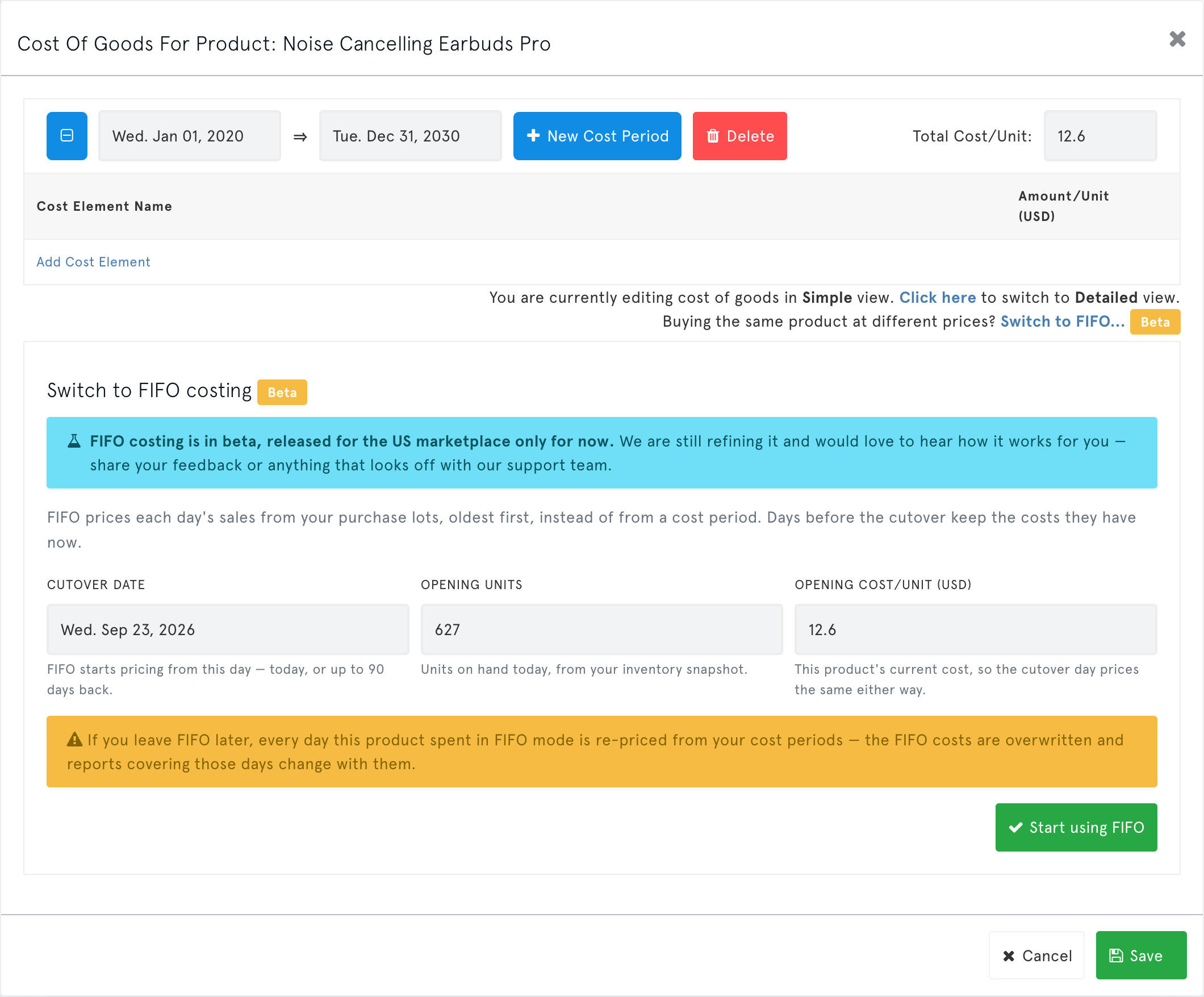
- Below the cost periods, click Switch to FIFO… (marked Beta).
- Check the three pre-filled values:
- Cutover date: the first day FIFO prices. It can be today or up to 90 days in the past. Days before the cutover keep the costs they have now.
- Opening units: the units you have on hand, taken from your inventory snapshot. These become your first lot.
- Opening cost/unit: the product's current cost. The cutover day then costs the same whichever method prices it.
- Click Start using FIFO.
The window reloads with the lot editor, starting with your opening lot.
Managing Purchase Lots
Each row in the lot editor is one purchase:
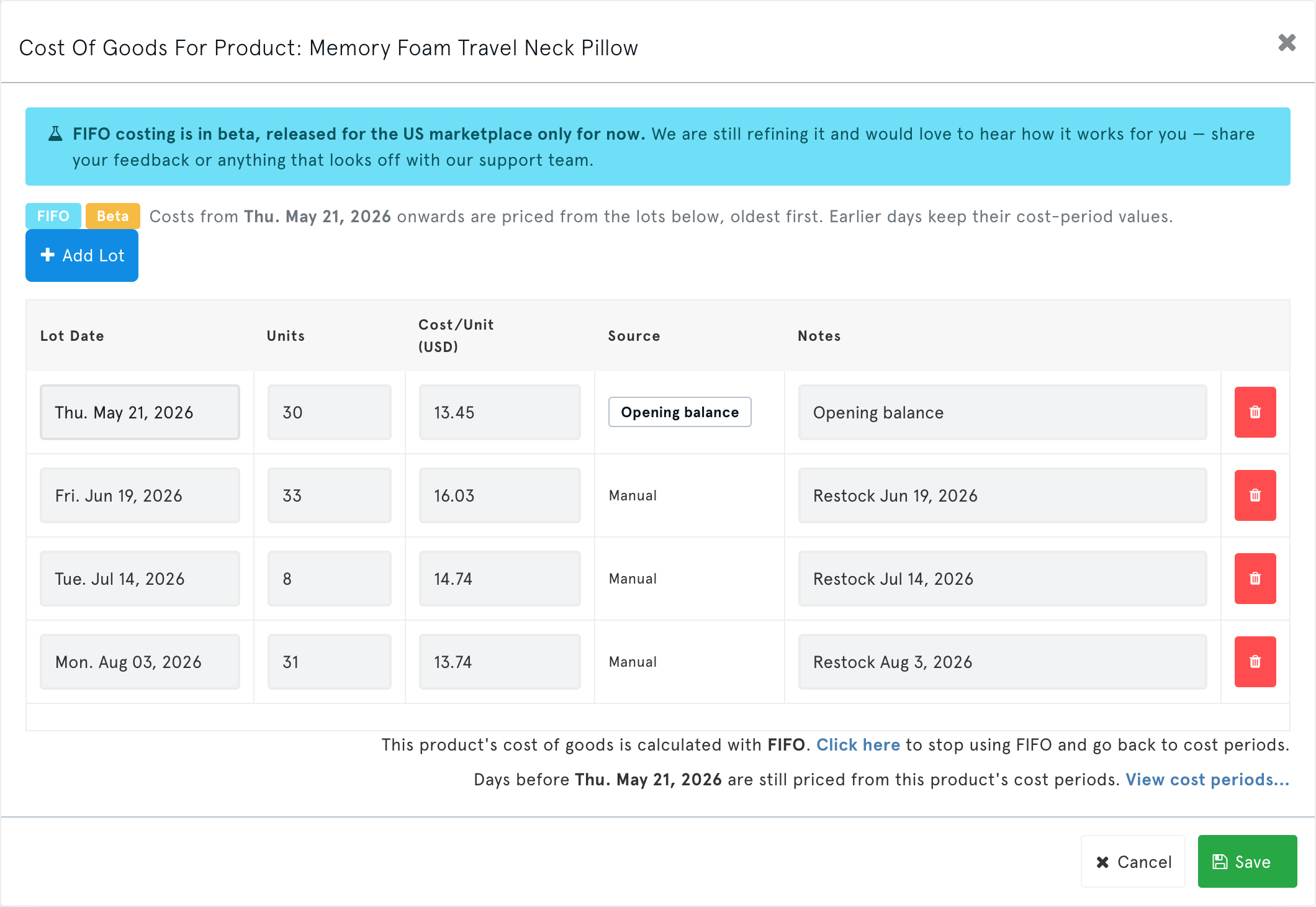
| Column | What it means |
|---|---|
| Lot Date | When the units arrived. It cannot be earlier than the cutover date. |
| Units | How many units the lot holds. It must be above zero. |
| Cost/Unit | What each unit cost you, in the marketplace currency. It can be zero. |
| Source | Opening balance for the lot created at switch-over, Manual for lots you add. |
| Notes | Anything useful, such as a PO number or supplier. |
- Click Add Lot to record a new purchase, then Save.
- Edit any lot's date, units, cost or notes and click Save. Costs are recalculated from the earliest day your change affects.
- Delete a lot with the trash icon. A FIFO product needs at least one lot. To stop using lots altogether, leave FIFO instead (see below).
- The opening lot always sits on the cutover date, so its date cannot be changed.
After you save, SellerLegend recalculates the affected days in the background, usually within a few minutes. Newly arrived sales are costed automatically within a few hours.
What Counts as Using Up a Lot
Lots are consumed by the units that leave your inventory:
- Sales: net of returns. A returned unit reduces that day's consumption, so it effectively goes back into stock.
- Removal orders and disposals: units shipped back to you or disposed of use up lots on the day the removal was requested.
- Reimbursed lost or damaged units: units Amazon reimbursed you for use up lots on the day the reimbursement was approved.
When Lots Run Out
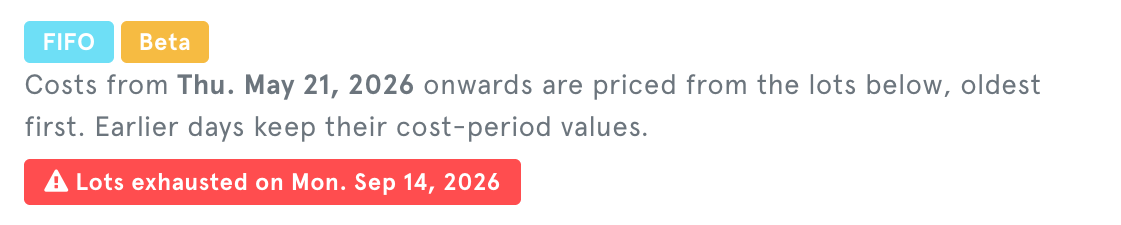
If sales use up every unit in your lots, SellerLegend keeps pricing later days at the last lot's cost, so your COGS never drops to zero. It also flags the problem:
A red Lots exhausted on [date] badge in the product's lot editor
A Lots Exhausted status in the COGS Alert column on the Cost of Goods screen
A Lots Exhausted count in the COGS coverage tile
To fix it, add the purchase lots you are missing. Every day from the exhaustion date onwards is recalculated.
Your Cost Periods While in FIFO
A FIFO product keeps its cost periods, but you cannot edit them while it is in FIFO. They still matter:
- They price every day before the cutover date.
- They take over again if you stop using FIFO.
Click View cost periods… in the lot editor to see them. If the product has no cost periods, the days before its first lot are priced from that lot. Stopping FIFO would then leave the product with no cost of goods until you add a cost period.
Stopping FIFO
In the lot editor, click the Click here link beside "to stop using FIFO and go back to cost periods", then confirm.
WARNING
Leaving FIFO re-prices every day the product spent in FIFO from your cost periods. The FIFO costs are overwritten, and reports covering those days change with them. Your lots are kept, so you can switch back later.
The Cost of Goods Screen
- A Costing Mode column shows each product's method: Simple, Detailed or FIFO (marked Beta). Filter on it to list all your FIFO products.
- The COGS Alert column classifies FIFO products on their own terms: OK, No COGS (nothing has been costed for today yet) or Lots Exhausted. The Period Ended and Ending Soon alerts do not apply to FIFO products.
Current Limitations
These are known gaps during the beta:
US marketplace only: FIFO has been released for the US marketplace only for now. EU marketplaces such as Germany, France, Italy, Spain, the Netherlands, Sweden, Poland and Belgium can't use it yet: they share one stock pool across countries, which needs lots shared across those marketplaces. Other marketplaces will follow in later releases.
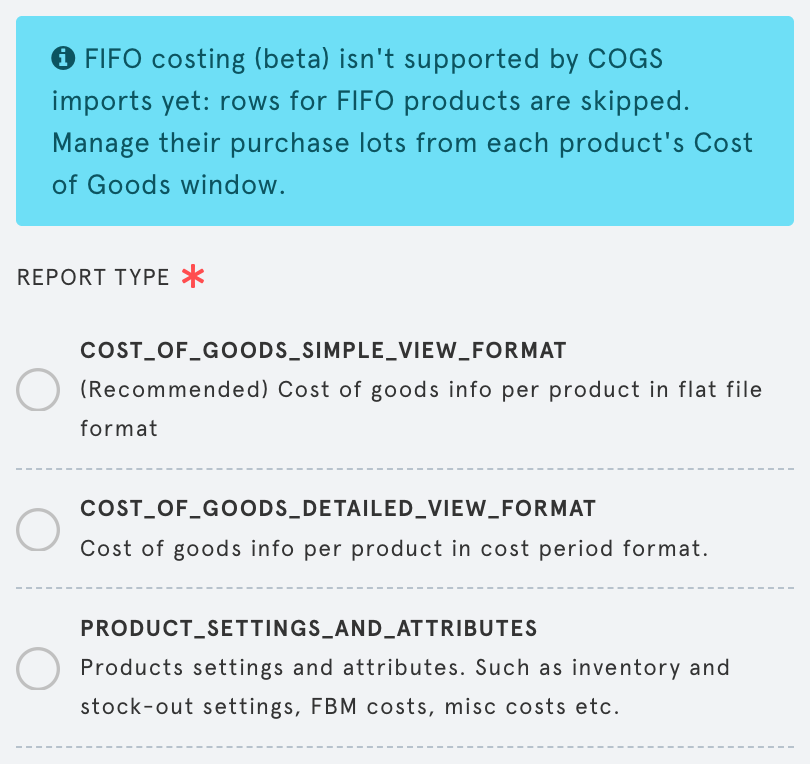
Bulk import/export: the COGS Excel import and export files do not include purchase lots yet.
- Import: rows for FIFO products are skipped and marked as such in the results file. Everything else in the file is imported as usual.
- Export: FIFO products appear with their cost periods only.
- Manage FIFO lots from each product's Cost of Goods window.
A notice at the top of the import and export forms says the same:
Lots are entered by hand: SellerLegend does not yet create lots from your inbound shipments.