A Clearer Billing Tab -- Your Plan, Next Invoice and Every Charge at a Glance
November 19, 2026
Type: Improvement
Overview
The Billing tab in Account Settings has been redesigned around the questions you usually come with: what plan am I on, what do I pay next, what have I paid, which card is used, and how much credit do I have. Everything you could do before is still there. It is now easier to find and easier to read.
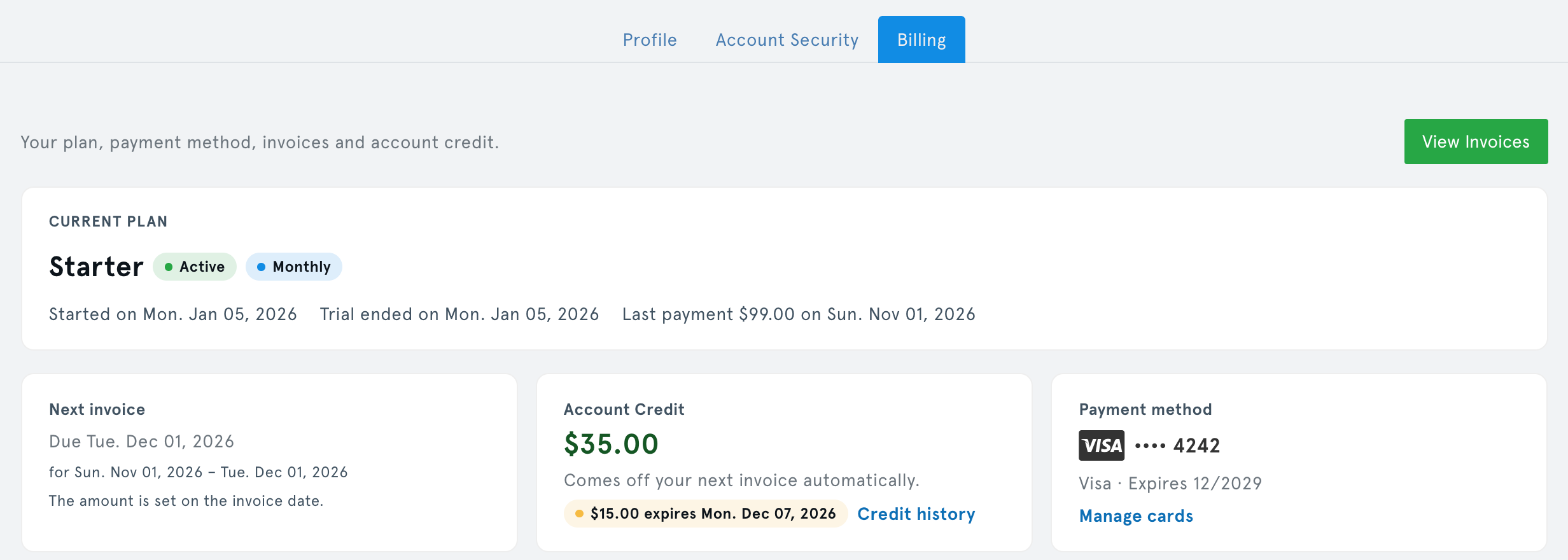
What's New
Your Plan on One Card
- A Current plan card at the top shows your plan, its status (Active, Trial or Cancelled), whether you are billed monthly or yearly, and the dates that matter: when it started, when a trial ends, when it was cancelled or resumed, and your last payment.
- The card shows the one action that fits your situation: Skip Trial, Resume Subscription, Start New Subscription or Add Payment Information.
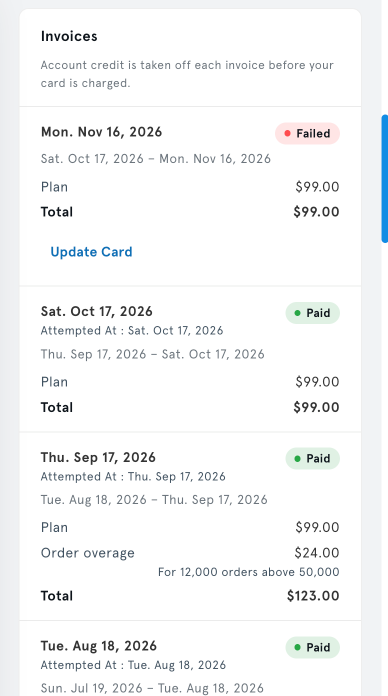
- If a payment fails, the plan is marked Payment failed and a red notice shows the amount and the date, with an Update Card button next to it.
- If your bank asks you to confirm a payment, a yellow notice tells you so and takes you to the invoice where you confirm it.

Summary Tiles
Three tiles under the plan card answer the most common questions at once:
- Next invoice: when your next invoice is due. The amount is set on the invoice date, so the tile tells you that instead of guessing.
- Account credit: how much credit you have, with a warning when some of it is about to expire, and a link to your credit history.
- Payment method: the card that will be charged, with a link to manage your cards.
Invoices You Can Read Line by Line
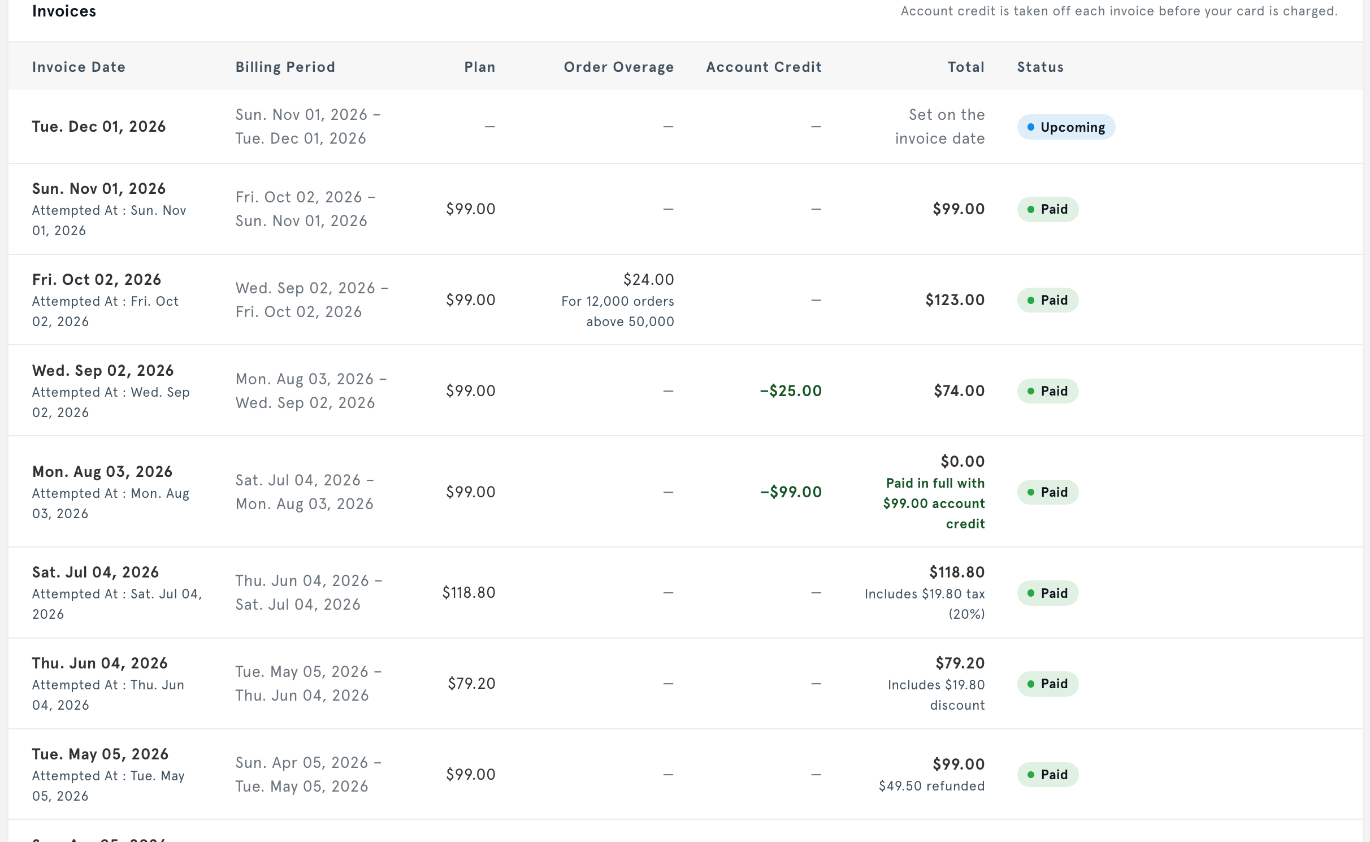
- Each invoice shows its billing period, then the Plan, any Order overage, any Account credit used and the Total.
- Taxes, discounts and refunds are noted under the total, for example "Includes $19.80 tax (20%)" or "$49.50 refunded".
- Each invoice has a plain status: Upcoming, Paid, Refunded, Failed, Forgiven, Needs authentication, Pending, Processing error or Payment declined.
- Past invoices always show what you were actually charged, even if your plan or settings have changed since.
- If an invoice needs a payment from you, the Pay Charge button is on that invoice's row.
Cards and Credit in Their Own Sections
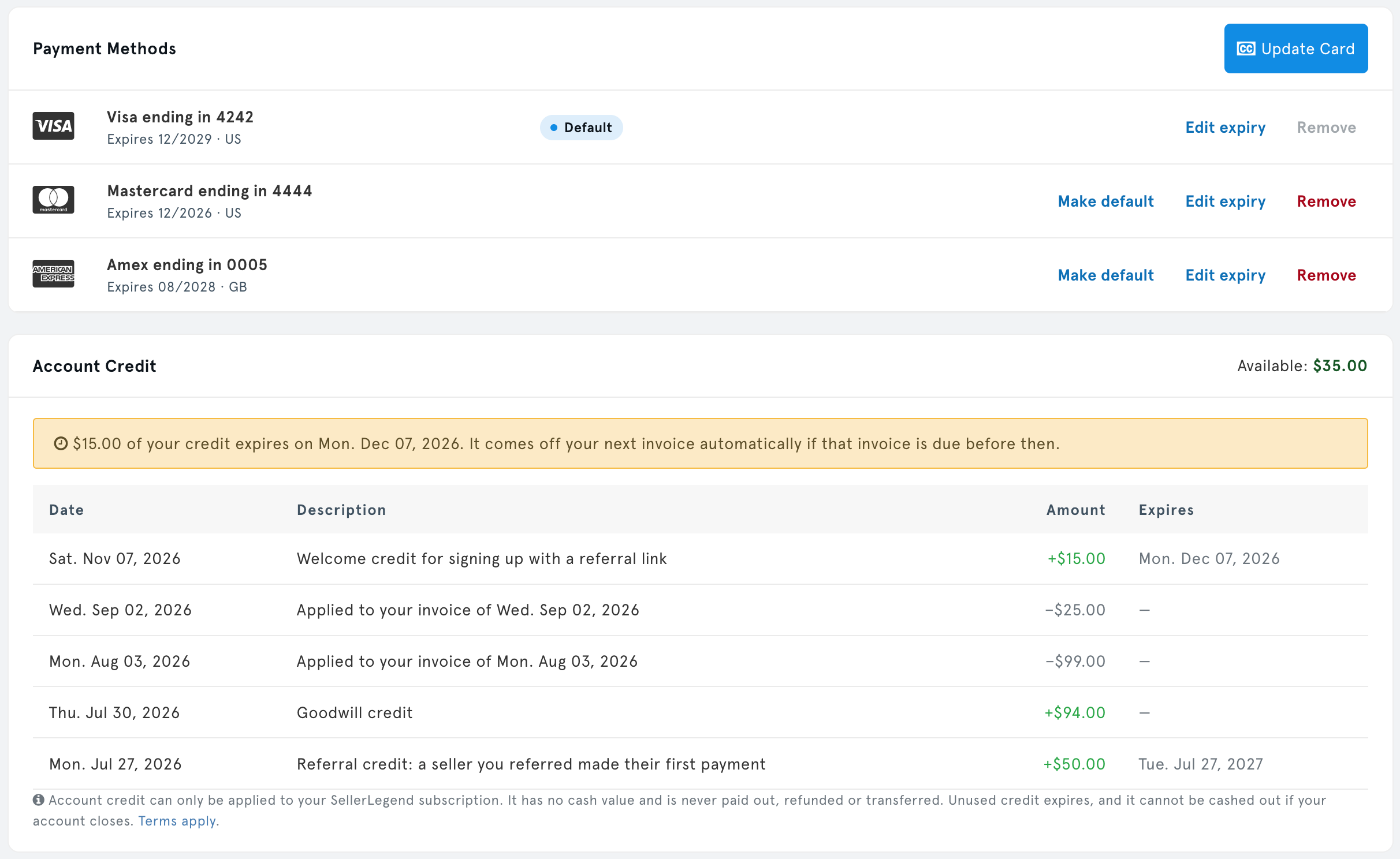
- Payment Methods lists your cards. From each card you can Make default, Edit expiry or Remove it, and you can add a new card.
- Account Credit shows your credit history, including credit earned from Refer a Friend, with a warning when some of your credit is about to expire.
Cancel Subscription Moved to the Bottom
- Cancel Subscription now has its own section at the bottom of the tab instead of sitting next to the everyday buttons, so you are less likely to click it by accident.
Tabs at the Top of Account Settings
- The Profile, Account Security and Billing tabs now sit at the top of the Account Settings page, as on other pages with tabs.
- The page still remembers the tab you were on last.
Works on Phones
- On a phone, each invoice is shown as its own small card with its date, status, amounts and action, so nothing is cut off.
- Card actions move under each card instead of running off the screen.
How to Use
- Click your profile in the top-right corner and choose Account Settings.
- Open the Billing tab.
- Check your plan and any notices on the Current plan card at the top.
- Scroll down for your invoices, cards and credit history, or use the links in the summary tiles to jump straight to them.
- To pay an invoice that needs your action, click Pay Charge on its row in Invoices.
Benefits
- Answers first: your plan, next invoice, credit and card are visible as soon as the tab opens.
- Understand every charge: see exactly how each invoice adds up, including overage, credit, tax, discounts and refunds.
- Accurate history: past invoices keep showing what you paid at the time.
- Fix payment problems quickly: a failed or unconfirmed payment is flagged at the top, with the button you need next to it.
- Fewer accidental clicks: cancelling your subscription is kept apart from everyday actions.
Impact
- No action is required. Your plan, cards, invoices and credit are unchanged; only the way they are shown is new.
- Bookmarks and links to the Billing tab keep working.
- If you have not seen an amount for your next invoice before, that is expected: the amount is calculated on the invoice date.
- The separate Subscription page is unchanged.