Team Roles
How To Get Here
From the top menu, go to: Settings > Team, then open the Roles tab.
What Is a Role?
A role is a reusable bundle of marketplaces and permissions, for example everything your accountant needs. Roles save you from setting up the same access person by person:
- Describe a job once. Create a role and choose its marketplaces and permissions.
- Give it to people. A member can hold several roles. Their access is all of them added together.
- Change it in one place. Edit the role and everyone who holds it changes with it. Extras for one person go on their own page.
The Roles Tab
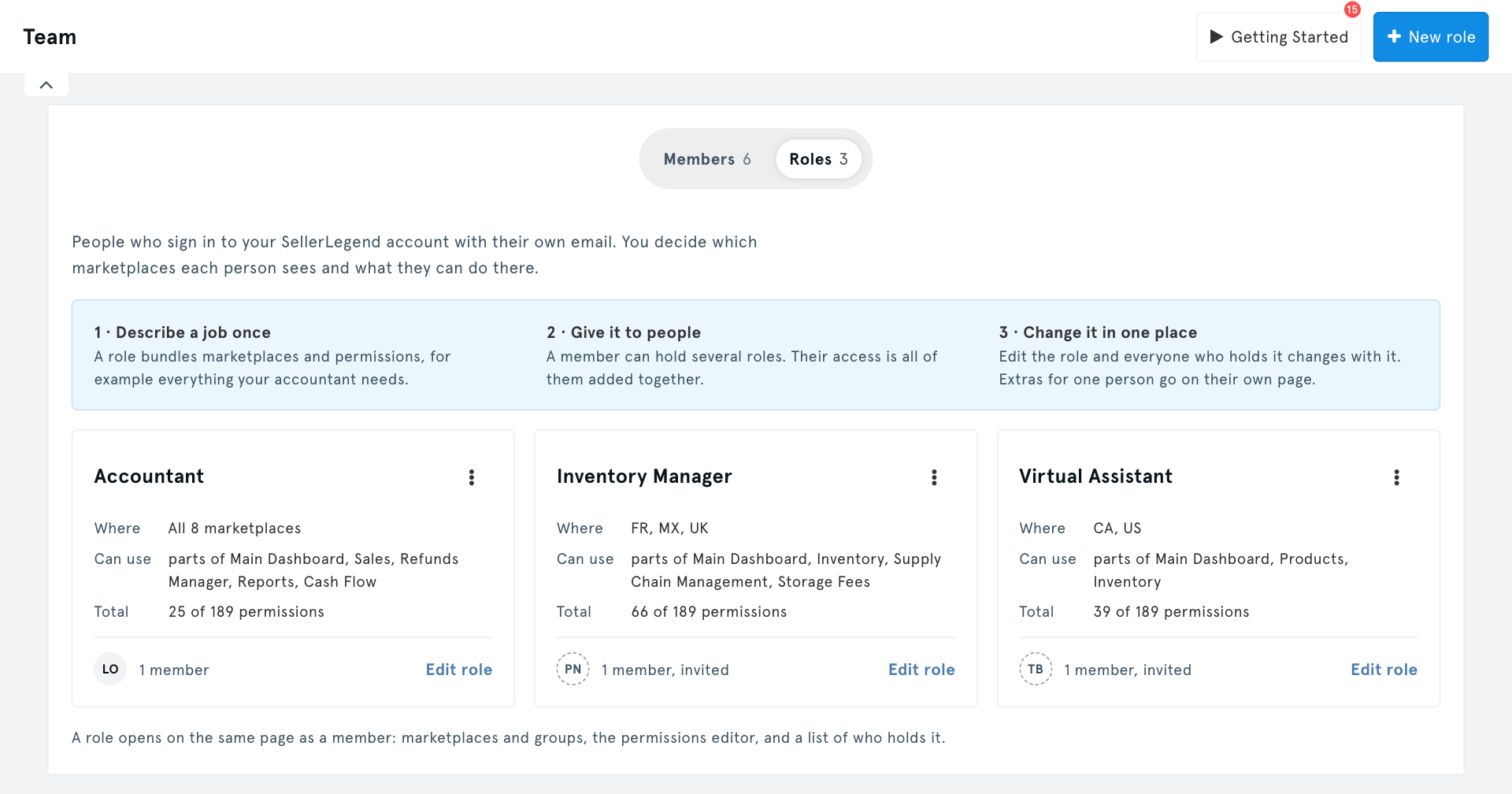
Each role is a card that shows:
| On the card | What it tells you |
|---|---|
| Where | The marketplaces and groups the role gives. |
| Can use | The areas of SellerLegend the role opens. parts of means some pages in those areas, not all. |
| Total | How many permissions the role has switched on. |
| Members | Who holds the role, or Nobody has this role yet. |
| Edit role | Opens the role's page. |
| ⋮ menu | Rename, Revoke all access and Delete role. |
Creating a Role
- Click New role at the top right of the Roles tab.
- Type a name, such as Accountant, and confirm.
- Click Edit role on the new card.
- Choose the role's marketplaces and groups, its permissions, and who holds it.
- Click Save changes.
The Role Page
A role opens on the same kind of page as a team member.
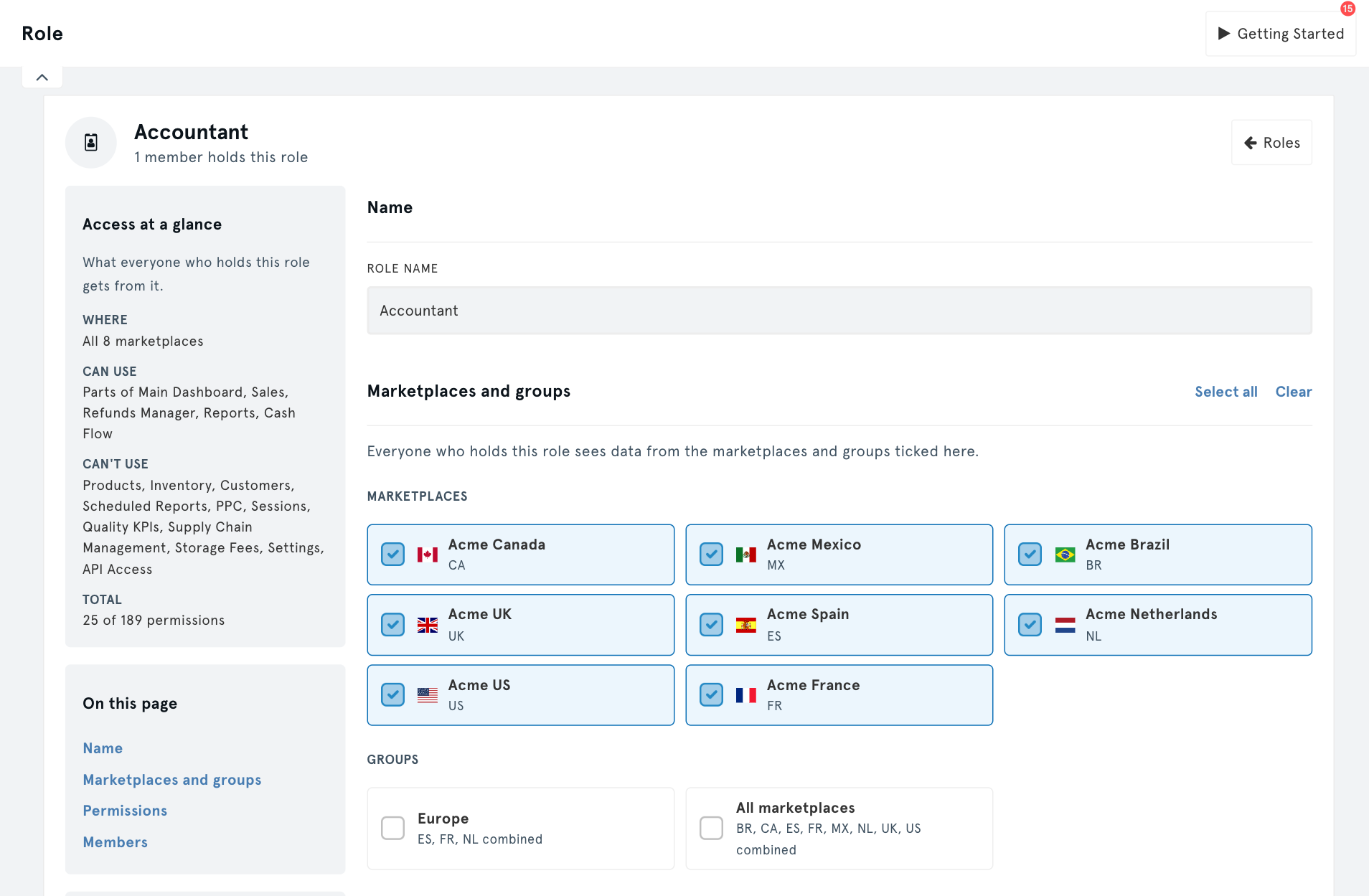
| Section | What you set |
|---|---|
| Name | The role's name. |
| Marketplaces and groups | Everyone who holds the role sees data from the marketplaces and groups ticked here. |
| Permissions | What everyone with the role can open and do. It works the same way as on a member's page: switch a whole area on, or open it to pick pages, actions and panels. |
| Members | Tick the people who should hold the role. |
Access at a glance on the left sums up what the role gives, and updates as you make changes. Everything is saved together with Save changes.
For how the permission switches work, see Managing a Team Member's Access.
Giving a Role to Someone
There are three places to do it:
- When you invite them: choose Use a role in the invite window.
- On their page: tick the role in the Roles section.
- On the role's page: tick them in the Members section.
Roles Add Up
A person's access is everything from their roles plus anything you grant them directly.
- If one role gives a marketplace and another role gives two more, the person sees all three.
- A role can only give access. It never takes away something another role or a direct permission gives.
- On a member's page, whatever comes from a role is shown locked, with the role's name. To change it, change the role.
Plan a few small roles
Roles that each cover one job (accountant, inventory, customer service) combine better than one large role. Give a person two roles when they do two jobs.
Removing a Role's Access
| Action | What happens |
|---|---|
| Revoke all access | Keeps the role and its permissions but takes away its marketplaces, groups and members. Nobody holds the role afterwards. |
| Delete role | Deletes the role. Everyone who held it loses the access it gave. Access they have from other roles, or directly, stays. |
Both ask you to confirm first.
Hints & Tips
- Name roles after the job, not the person, so you can reuse them.
- Check a role's Access at a glance before saving. It shows what everyone who holds the role will be able to open.
See Also
- The Team Screen -- Inviting people and the list of members
- Managing a Team Member's Access -- The member page, section by section
- Team Permissions -- How permissions work, and the full list