Team -- Invite People, Set Their Access and Manage Roles in One Place
November 26, 2026
Type: Feature Enhancement
Overview
Guest Access and User Roles are now one screen called Team. You invite people, see at a glance what each of them can reach, and change their roles, marketplaces and permissions on a single page. Choosing permissions is easier too: plain switches instead of a tree of tick boxes, a search box, and a short explanation for every permission.
What's New
One Team Screen
- Settings > Team replaces the Guest Access and User Roles cards.
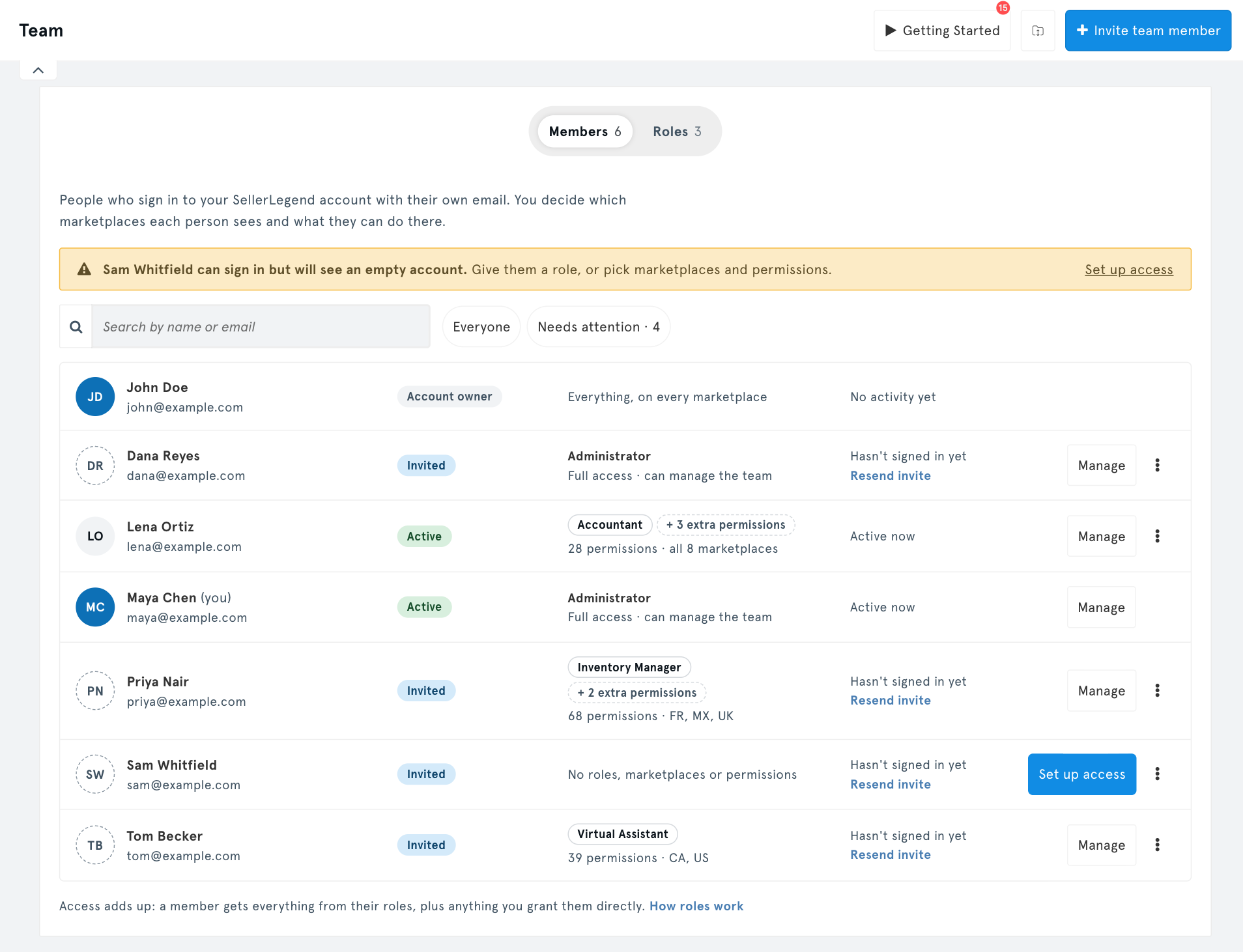
- The Members tab lists everyone who can sign in to your account. Each row shows the person's status (Active or Invited), the roles they hold, how many permissions they have, which marketplaces they see, and when they were last active.
- A banner and a Needs attention filter point out people who have not signed in yet, or who can sign in but would see an empty account.
- Guests are now called team members.
Set Access When You Invite
The invite window asks what the new person should be able to do, so nobody starts with an empty account:
- Use a role -- the quickest way.
- Same access as someone else -- copies another member's setup as a starting point.
- Administrator -- everything, plus managing the team.
- I'll choose myself -- opens their page so you can pick one by one.
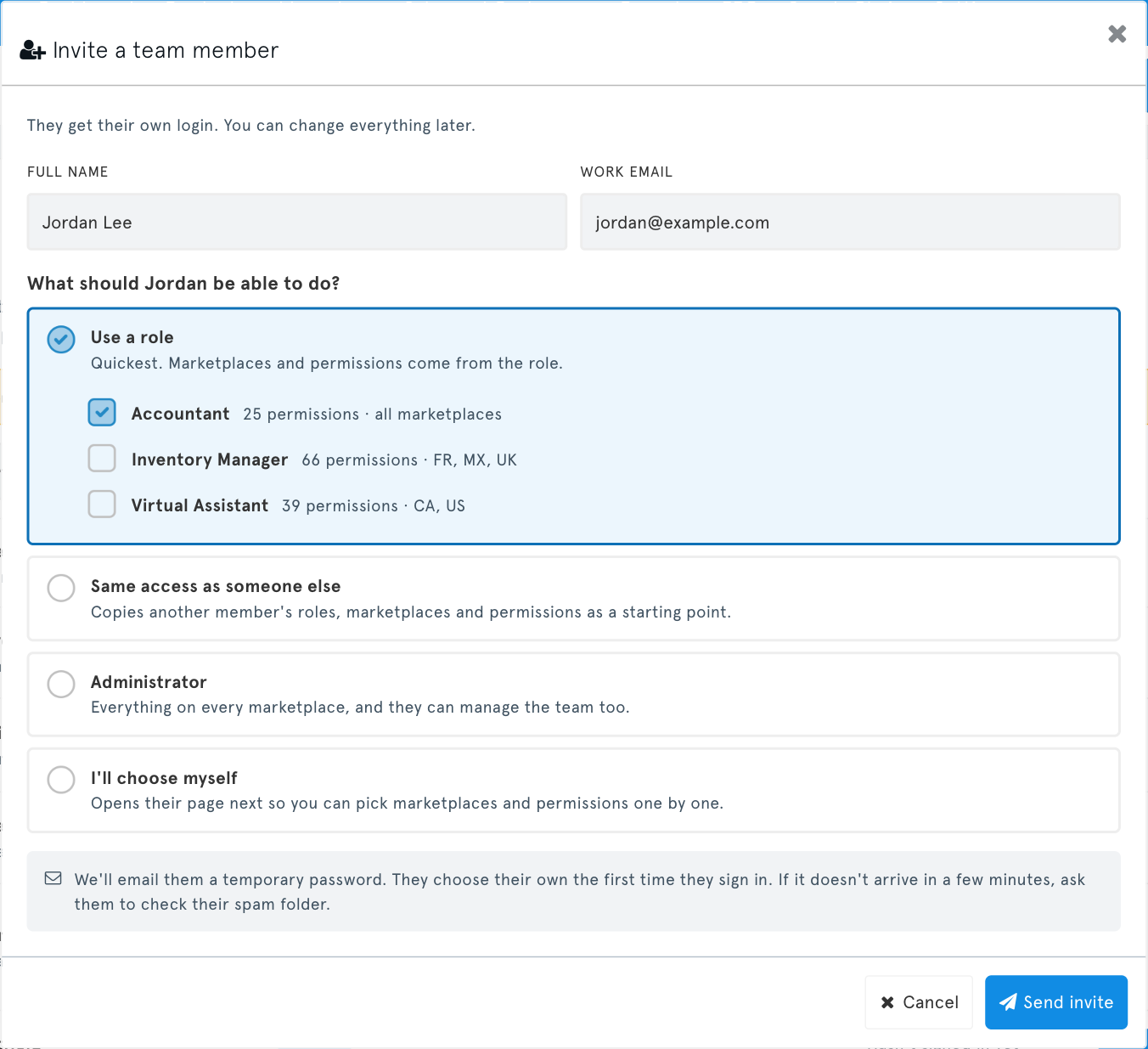
You can also resend an invite to someone who has not signed in yet. They get a new temporary password by email.
One Page per Person
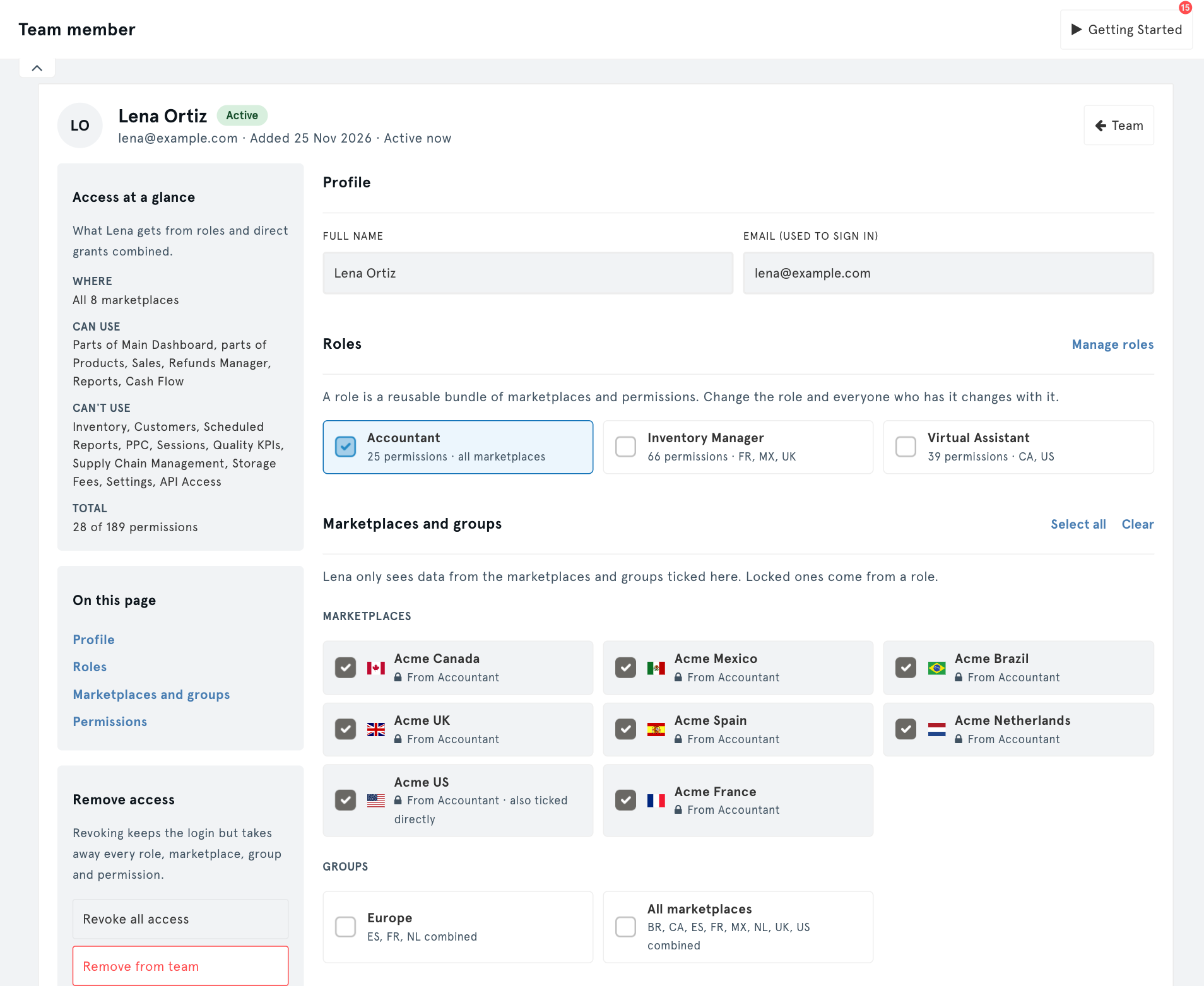
A team member's profile, roles, marketplaces and groups, and permissions are on one page and are saved together. Before, they were three separate screens.
- Access at a glance sums up where the person can look and what they can use, and updates as you make changes.
- Marketplaces and permissions that come from a role are shown locked, with the role's name, so you can see why someone has them.
- A bar at the bottom counts your unsaved changes, with Discard and Save changes.
- Copy from another member fills the page with someone else's access.
A Clearer Way to Choose Permissions
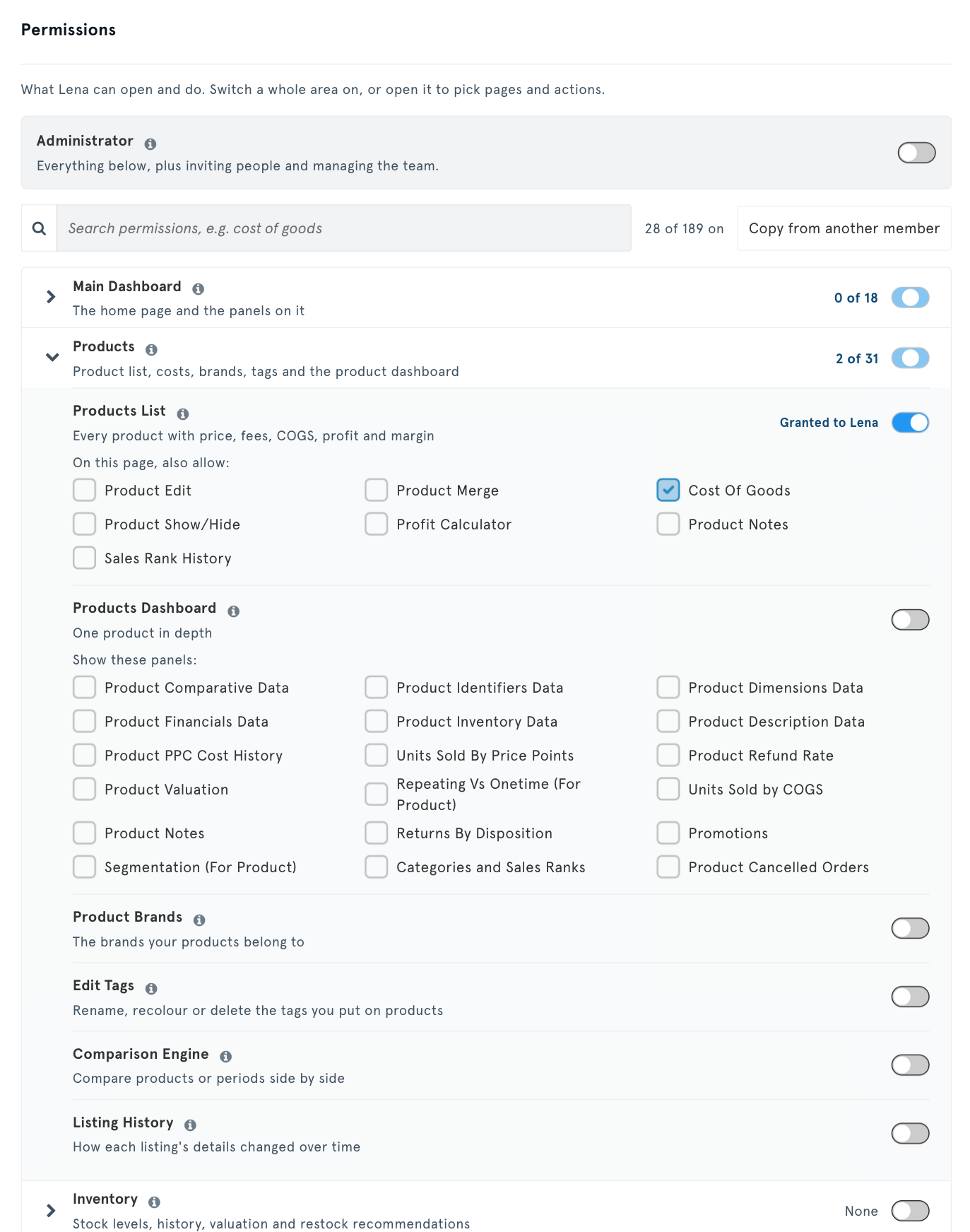
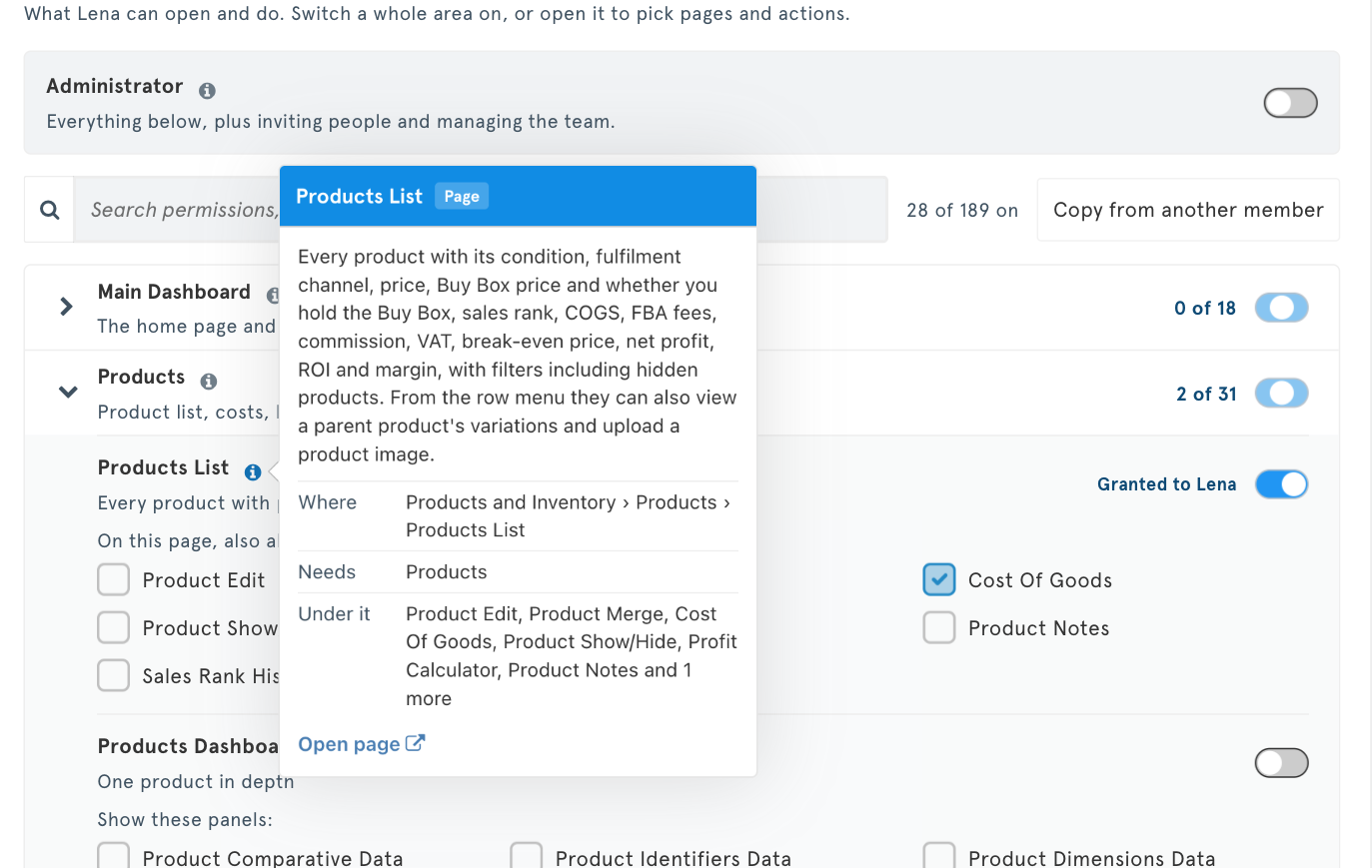
- Permissions are grouped into areas that follow the top menu. Switch a whole area on, or open it to pick single pages, the actions on each page, and dashboard panels.
- Every permission has a one-line description, and the count on each area shows how much of it is on.
- Search finds a permission by name or by what it does, for example cost of goods.
- An info button on every permission explains what it gives access to, where that is in SellerLegend, and what else it needs, with a link to open the page.
- Dashboard panel permissions now have the same names as the panels on your dashboards.
Roles as Cards
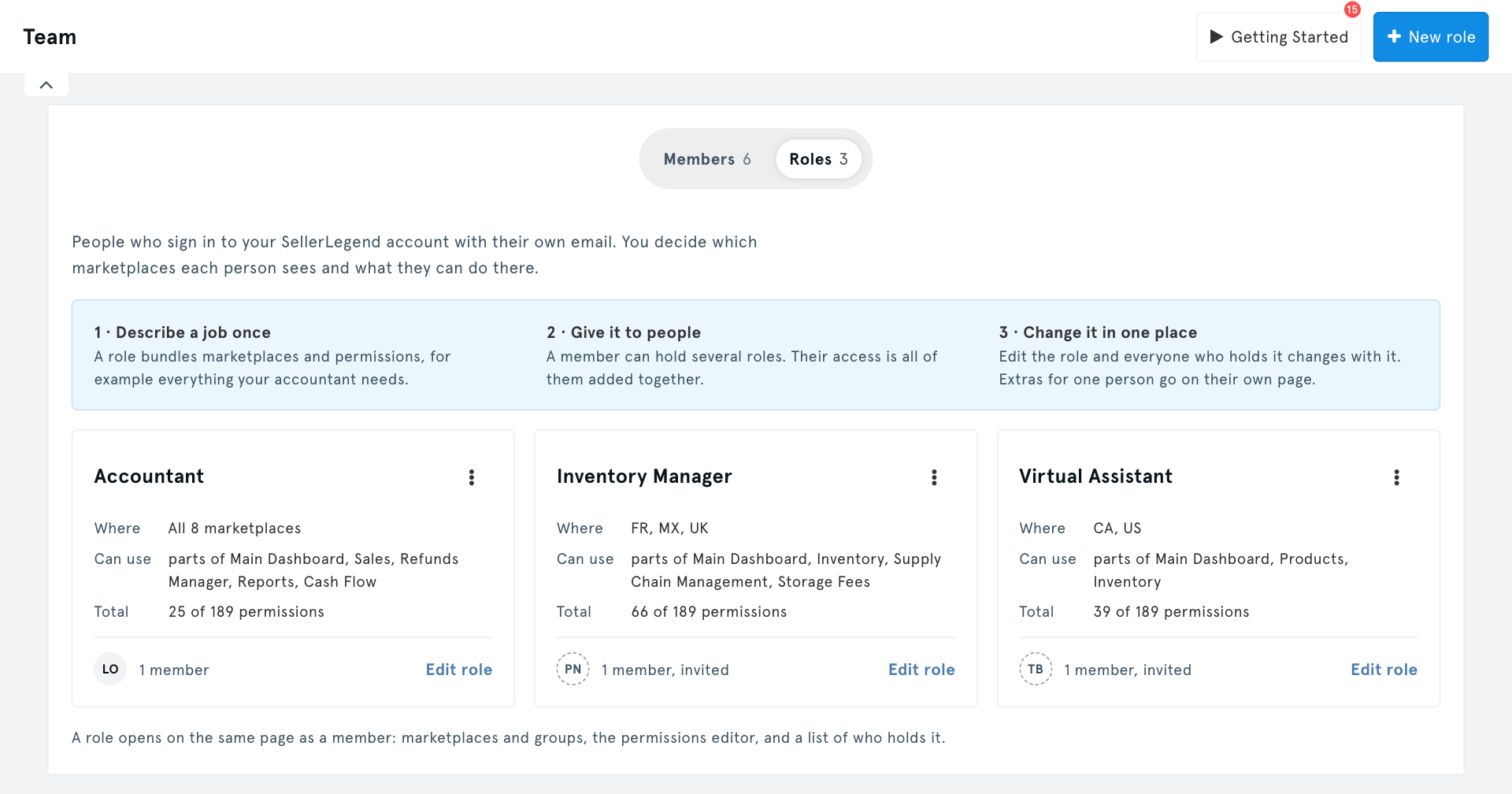
- The Roles tab shows each role as a card: where it applies, what it lets people use, and who holds it.
- A role opens on the same kind of page as a team member, with its marketplaces, permissions and members together.
Team Access on the Connections Screen
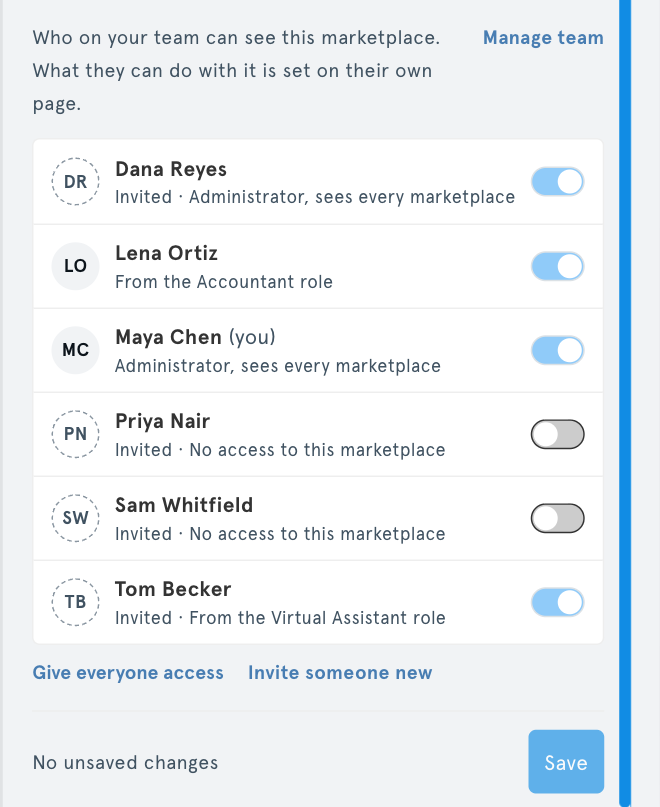
On Settings > Connections, an account's details panel has a new Team access section. Switch team members on or off for that marketplace without opening each person's page. The same switches are in the Edit Group window for marketplace groups.
How to Use
- Go to Settings > Team.
- Click Invite team member, enter a name and email, choose what the person should be able to do, and click Send invite.
- To change someone's access later, click Manage on their row, make your changes and click Save changes.
- To set up a job once and give it to several people, open the Roles tab, click New role, then Edit role.
Benefits
- See who can do what: every person's access is summed up on their row and on their page.
- Fewer clicks: one page and one save, instead of three screens.
- Fewer mistakes: nobody is left with an empty account, and locked rows show where access comes from.
- Know what you are granting: every permission is explained before you switch it on.
- Works on a phone: the Team pages and the permission details are usable on small screens.
Impact
- No action is required. Everyone you added keeps the same access, and your roles are unchanged.
- Old links still work. Bookmarks to the Guest Access and User Roles screens open the new pages.
- Account owners and Administrators can remove a team member themselves with Remove from team.
- Revoke all access now also takes away the person's permissions, not only their marketplaces, groups and roles.
- A few permissions that no longer did anything have been removed from the list. Nobody loses access to a page because of this.
- The Team and Roles lists are no longer data tables, so Export Table is not available on them. Bulk Import/Export for your team is still there.