Managing a Team Member's Access
How To Get Here
From the top menu, go to: Settings > Team, then click Manage (or Set up access) on a person's row.
What Is This Page For?
Everything about one team member is on one page:
- their profile (name and sign-in email),
- the roles they hold,
- the marketplaces and groups they can see,
- the permissions that decide which pages, actions and dashboard panels they can use.
You change what you need and click Save changes once.
The Left Column
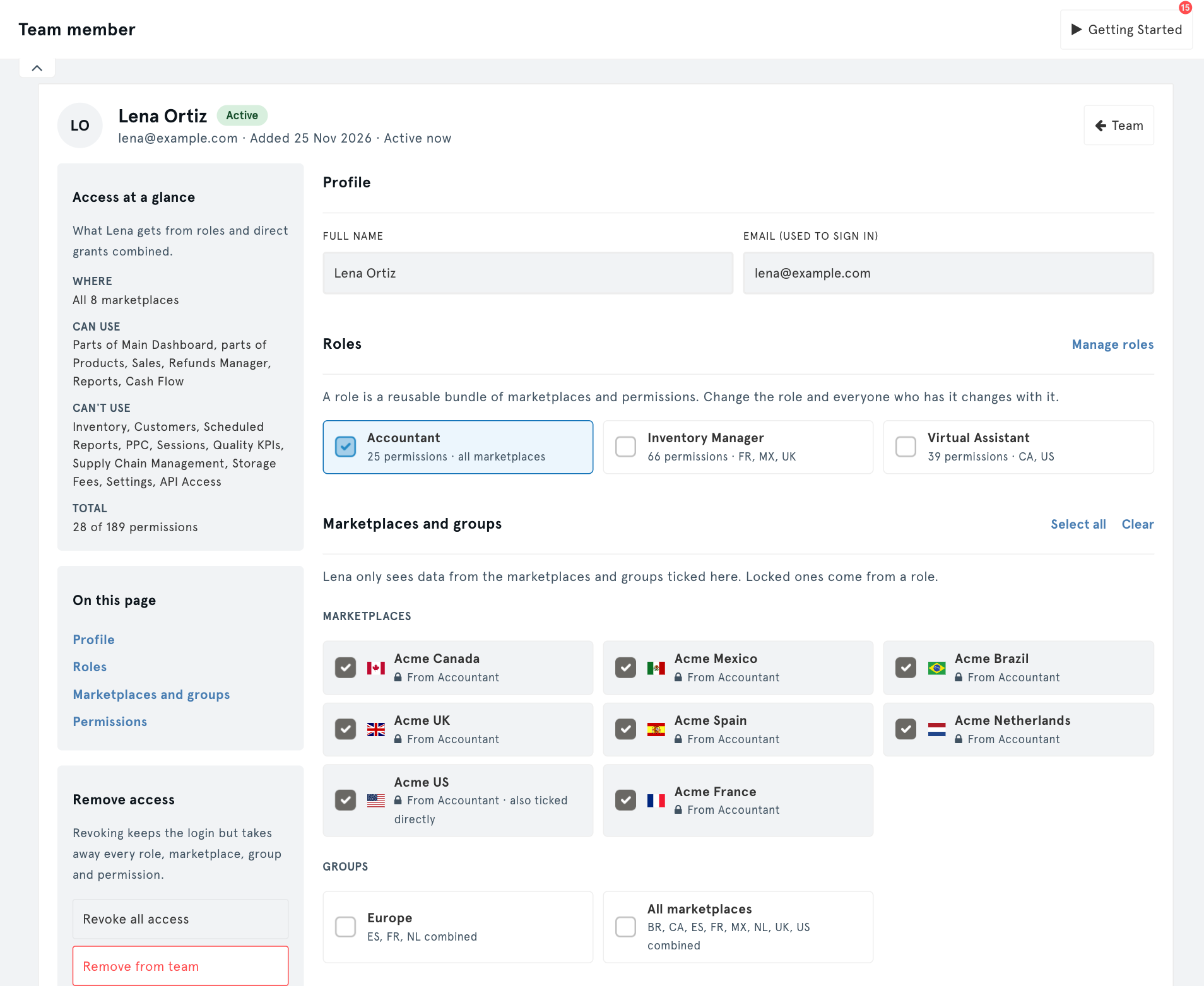
Access at a Glance
A live summary of what the person gets from their roles and from what you granted them directly, combined:
- Where -- the marketplaces and groups they can see.
- Can use -- the areas of SellerLegend they can open.
- Can't use -- the areas they cannot open.
- Total -- how many permissions are on.
It updates as you tick and untick things, before you save.
On This Page
Links that jump to Profile, Roles, Marketplaces and groups and Permissions.
Remove Access
- Revoke all access keeps the login but takes away every role, marketplace, group and permission.
- Remove from team deletes the person's login.
Profile
- Full name
- Email (used to sign in)
Changing the email changes what the person types to sign in.
Roles
A role is a reusable bundle of marketplaces and permissions. Tick a role to give it to the person; untick it to take it away. Manage roles opens the Roles tab.
When you tick a role, the marketplaces and permissions it gives appear further down the page as locked rows marked From followed by the role's name. They are locked because they belong to the role: change them on the role, and everyone who holds it changes with it.
See Team Roles.
Marketplaces and Groups
The person only sees data from the marketplaces and groups ticked here.
- Tick a marketplace to let them see it. Select all and Clear tick or untick everything at once.
- A row with a lock comes from a role (From Accountant) or from a group that is ticked (In Europe). You cannot untick it here.
- also ticked directly means the person has that marketplace from a role and you ticked it for them yourself. If you later take the role away, they keep it.
- A group gives access to all the marketplaces in it, shown combined.
No marketplaces, no data
Permissions decide which pages open. Marketplaces decide whose data is on them. A person with permissions but no marketplace sees empty pages.
Permissions
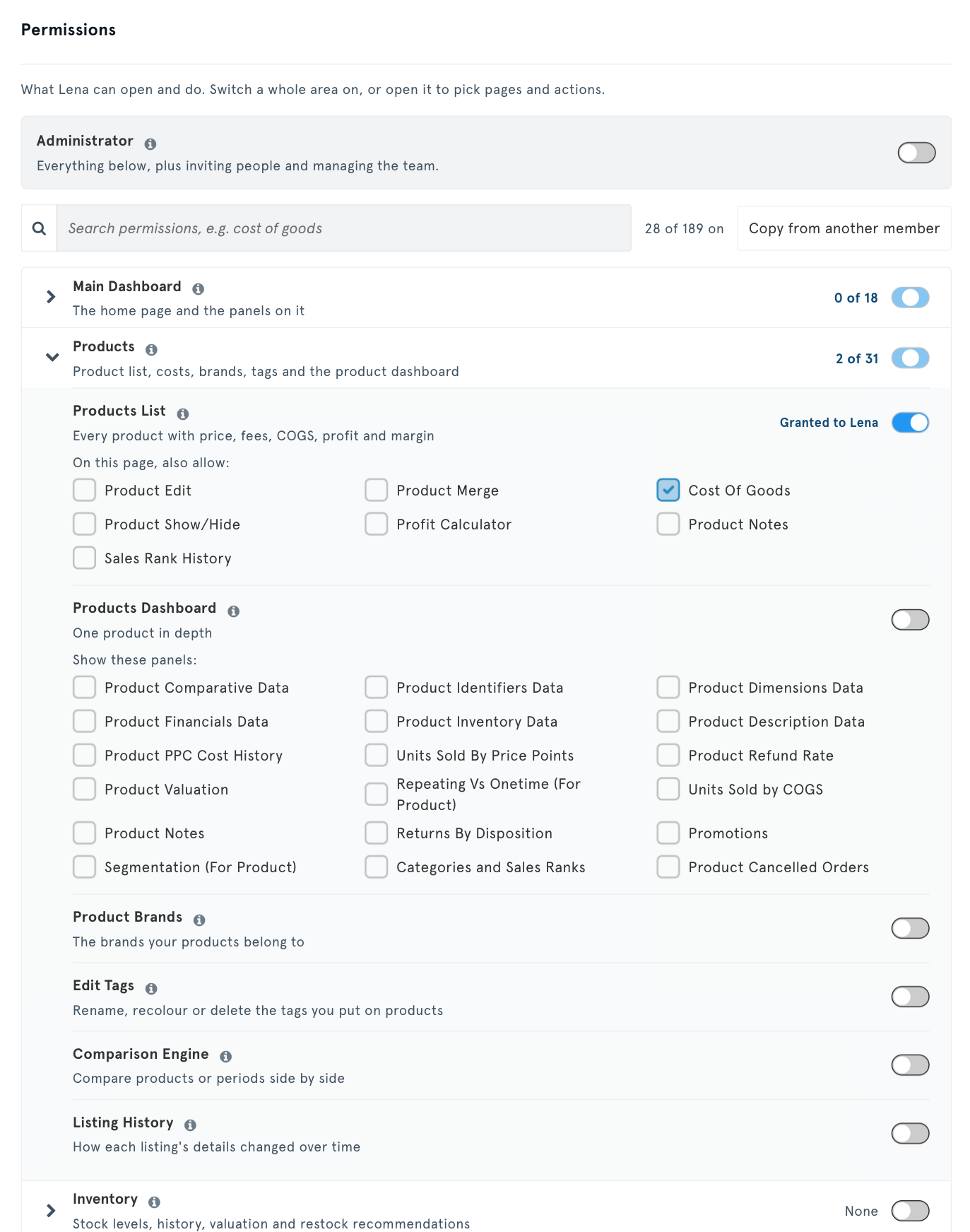
Permissions are grouped into areas that follow the top menu: Main Dashboard, Products, Inventory, Sales and so on.
Switching Things On and Off
- Switch a whole area on with the switch at the right of its row. The count beside it (2 of 31, All 18, None) shows how much of the area is on.
- Open an area with the arrow to pick single pages.
- Each page has its own switch. Under it are tick boxes for the actions on that page (On this page, also allow) and for its dashboard panels (Show these panels).
- Switching on an action also switches on the page it belongs to, because the action is no use without the page.
- Switching a page off also switches off the actions and panels under it.
What the Labels Mean
| Label on a row | Meaning |
|---|---|
| Granted to name | You gave this permission to the person directly. |
| From role | The permission comes from a role. It is locked here; change it on the role. |
| From role**, also granted directly** | Both. If the role goes, they keep it. |
Administrator
The Administrator switch at the top gives the person everything below it, on every marketplace, including permissions added later. They can also invite people and manage the team. With Administrator on, every other switch shows on and locked.
Switching Administrator off again brings back exactly what the person had before.
Search
Type in Search permissions to find a permission by name or by what it does, for example cost of goods. Matching rows stay; the rest are hidden until you clear the box.
Copy From Another Member
Copy from another member fills the page with another person's roles, marketplaces, groups and permissions. Nothing is saved until you click Save changes, so you can adjust the copy first.
The Info Button
Every permission has a small ⓘ button after its name. Click it to read what the permission gives access to, where that is in SellerLegend, what else it needs, what sits under it, and a link that opens the page.
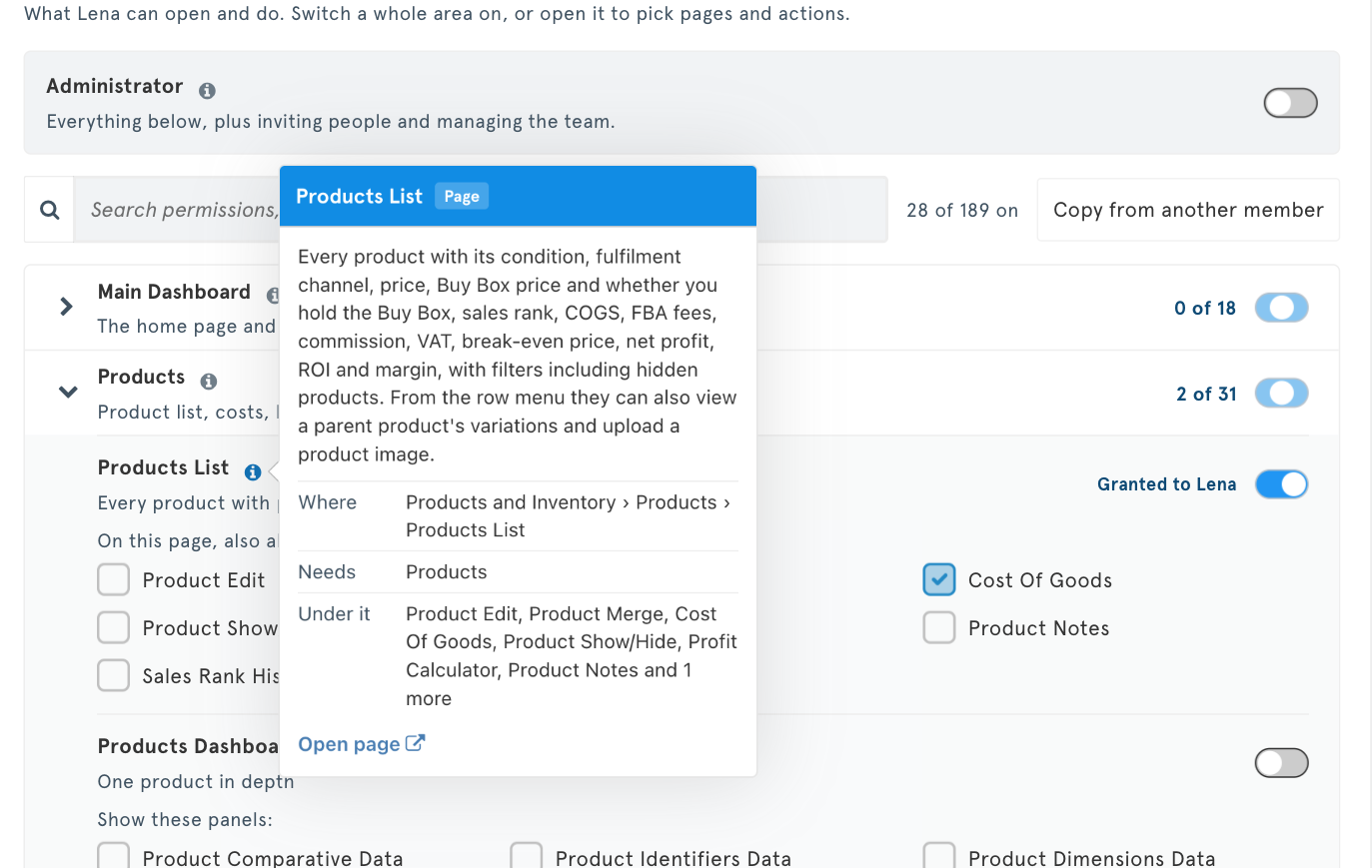
On a phone, the same information opens as a panel at the bottom of the screen.
See Team Permissions for the full list.
Saving
A bar at the bottom of the page counts what you changed, for example 2 unsaved changes · 2 permissions.
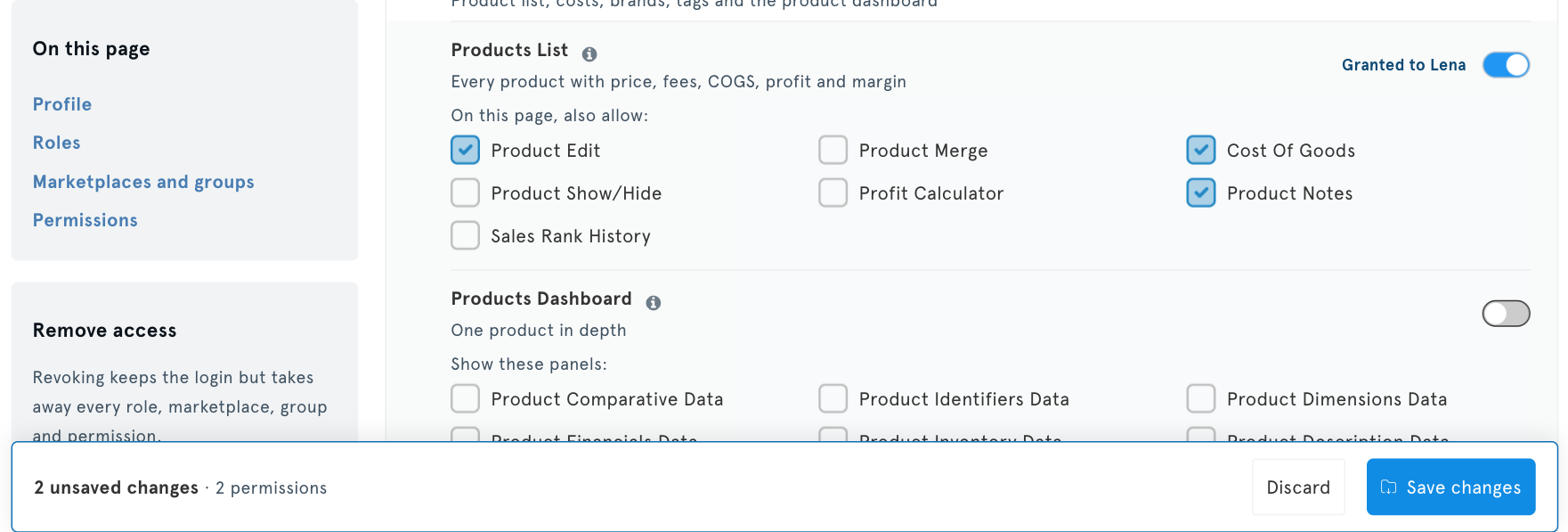
- Save changes saves everything at once: profile, roles, marketplaces and permissions.
- Discard puts the page back to how it was when you opened it.
- Leaving the page without saving loses your changes.
How Access Adds Up
A person's access is everything from their roles plus everything you grant them directly.
For example, Lena holds the Accountant role, which gives Sales and Reports on every marketplace. You also tick Cost Of Goods for her directly. Lena can now use Sales, Reports and Cost Of Goods. If you later change the Accountant role, Lena's access changes with it, but Cost Of Goods stays, because that one is her own.
Nothing in SellerLegend takes access away from a role. To give someone less than a role gives, use a smaller role or pick their permissions directly.
Team Access on the Connections Screen
You can decide who sees a marketplace from the marketplace itself, without opening each person's page.
- Go to Settings > Connections.
- Open the details panel of an account and scroll to Team access.
- Switch people on or off for that marketplace.
- Click Save.
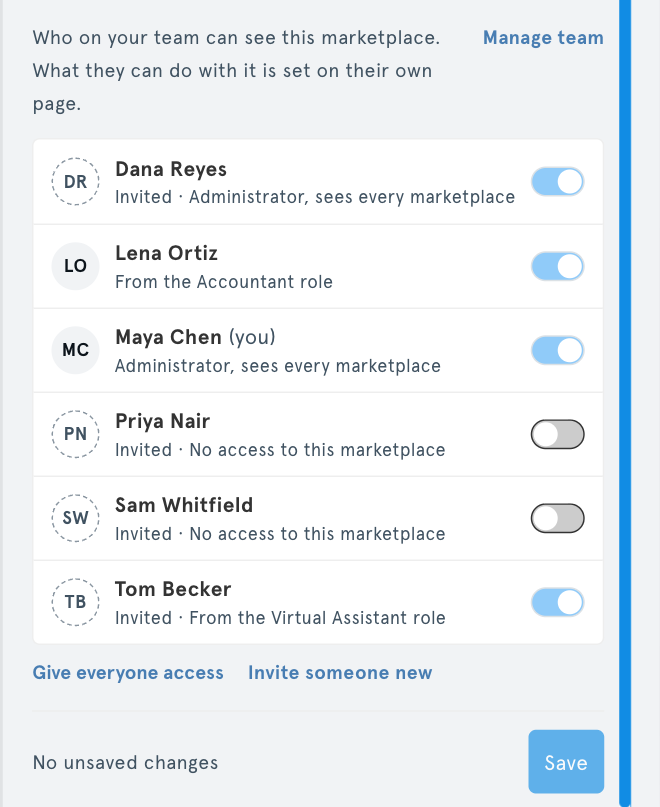
- A switch that is on and locked means the person already sees the marketplace because they are an Administrator, or through a role or a group. The note under their name says which.
- Give everyone access switches everybody on.
- Invite someone new opens the invite window; Manage team opens the Team screen.
The same switches appear in the Edit Group window of the marketplace switcher, where they decide who sees a marketplace group.
Hints & Tips
- Use roles for what a job needs, and direct permissions for one person's extras.
- After inviting someone with I'll choose myself, this page opens straight away so you can set them up.
- Check Access at a glance before saving. It is the quickest way to see what the person will actually be able to open.
See Also
- The Team Screen -- Inviting people and the list of members
- Team Roles -- Reusable bundles of marketplaces and permissions
- Team Permissions -- How permissions work, and the full list